

Verify your account
What verification asks for at each account level, what happens after you submit, and what each status means.
Verification opens live. The sandbox stays fully usable while you are not verified and while your submission is reviewed.
Pick a level
Section titled “Pick a level”Verification has levels. A level is a ceiling: it says what your account may do, and the Capabilities page in Settings always shows what is active for you now.
| Level | For | Asks for | Methods (at launch) |
|---|---|---|---|
| Personal Level 1 | trying Baiyar quickly | ID card (KTP), your personal NPWP, a selfie with the ID, a bank account in your name | QRIS, up to Rp5.000.000 per day |
| Personal Level 2 | bigger transactions | what you gave at Level 1 is kept; adds the signed ownership declaration and supporting documents | QRIS and virtual accounts, up to Rp10.000.000 per transaction |
| Business | companies | full verification up front: company data and documents | every supported method |
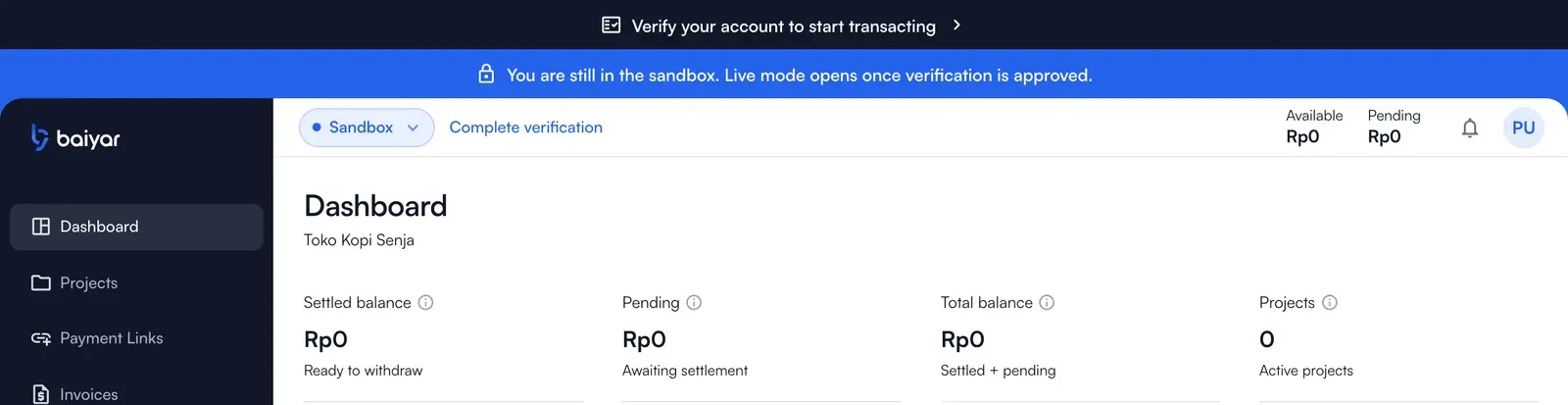
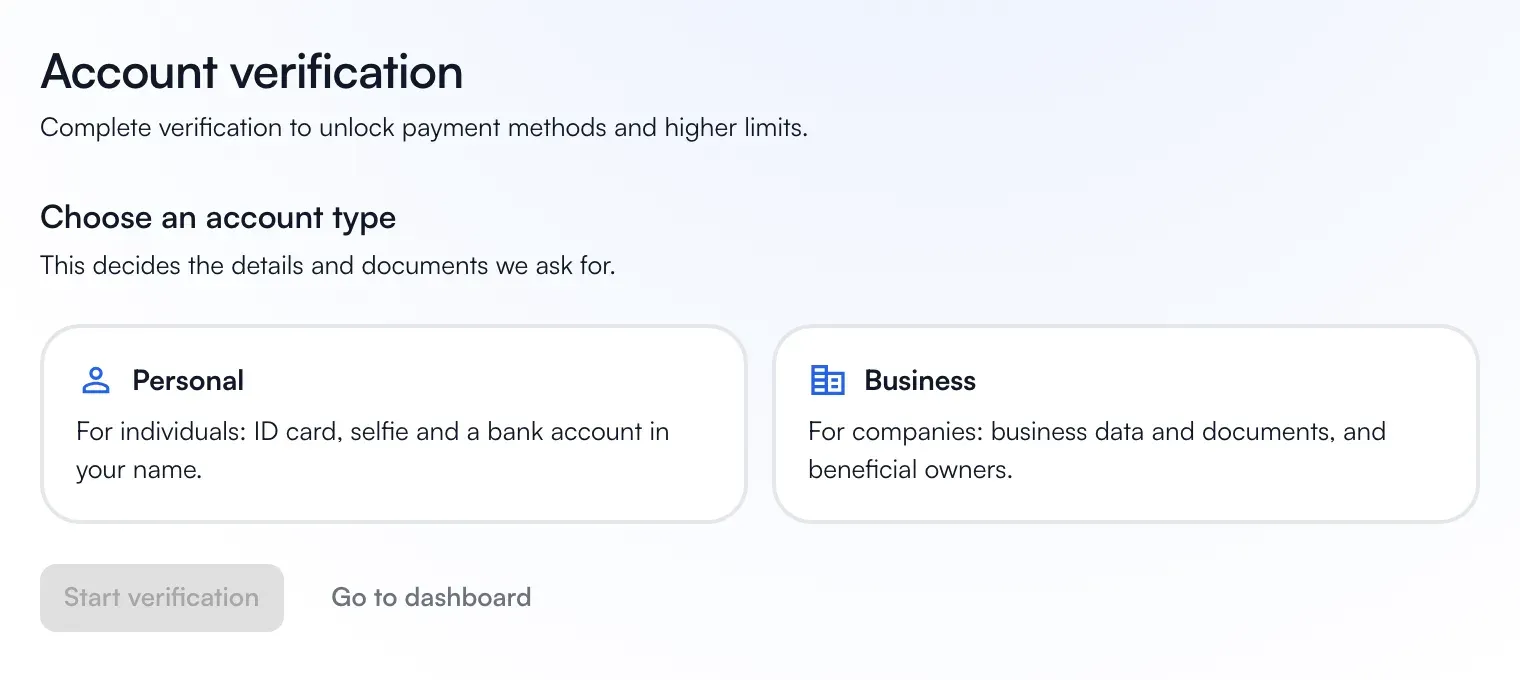
Choose Complete verification in the header (or the bar at the top of the page that asks you to verify your account) to start. You choose personal or business when you start; it can change while the submission is a draft and is locked after the first submit.
Fill in the form
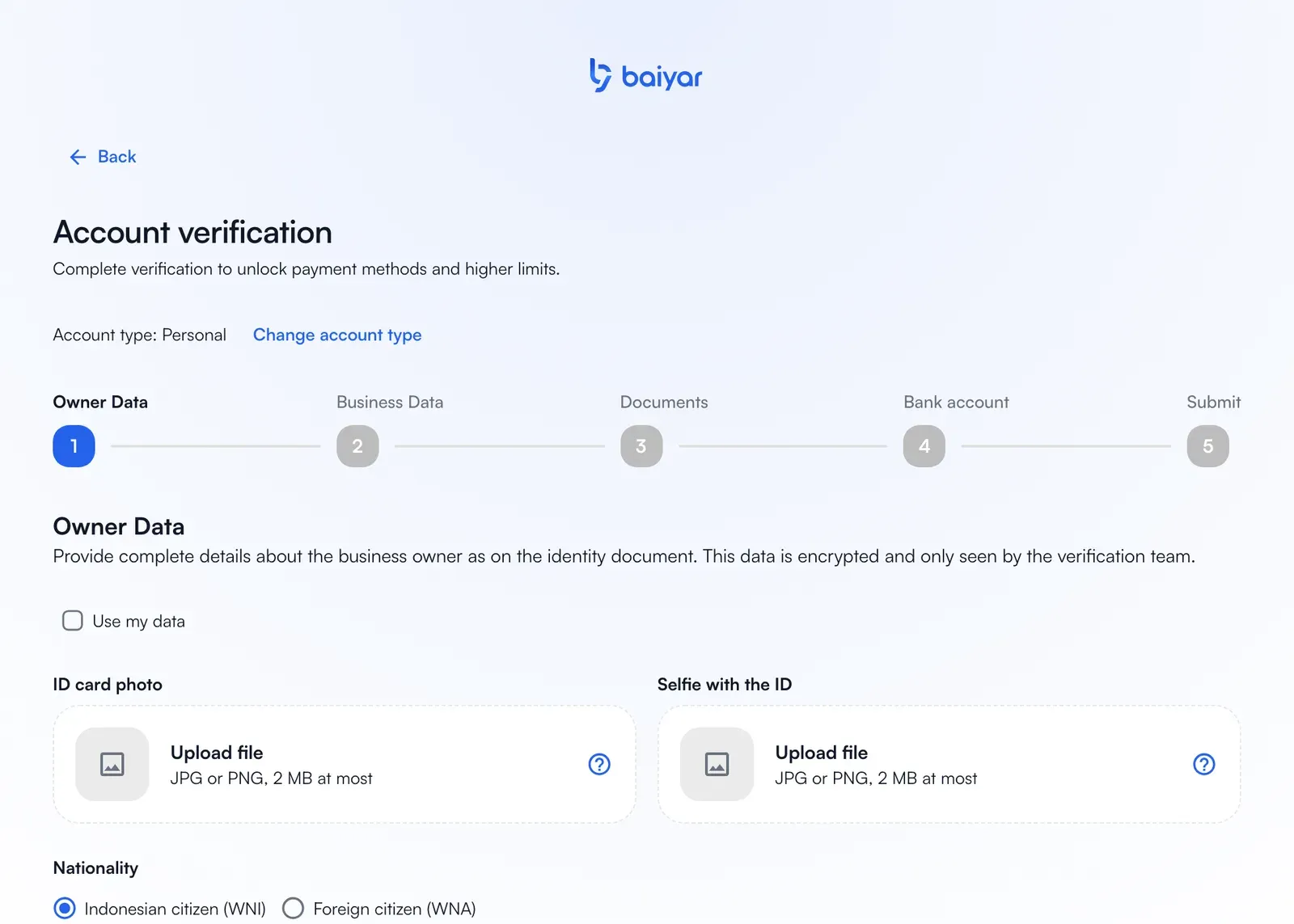
Section titled “Fill in the form”The verification page asks, in order:
-
Owner: your details as on the ID, a photo of the ID and a selfie holding it. Both photos must be clear: all four corners of the card visible, no glare, and your face visible in the selfie. Addresses must match the card down to RT/RW.
-
Business data: legal information (date of establishment, address, and for a company its name, legal form, NIB and company NPWP), then brand information (brand name, industry, a short description, estimated monthly volume, source of funds, at least one website or social media link, and at least one photo that proves the business).
-
For Business only: the beneficial owners, one card per owner.
-
The documents of your level, and the bank account that will receive your money. A verification carries exactly one bank account.
After you submit
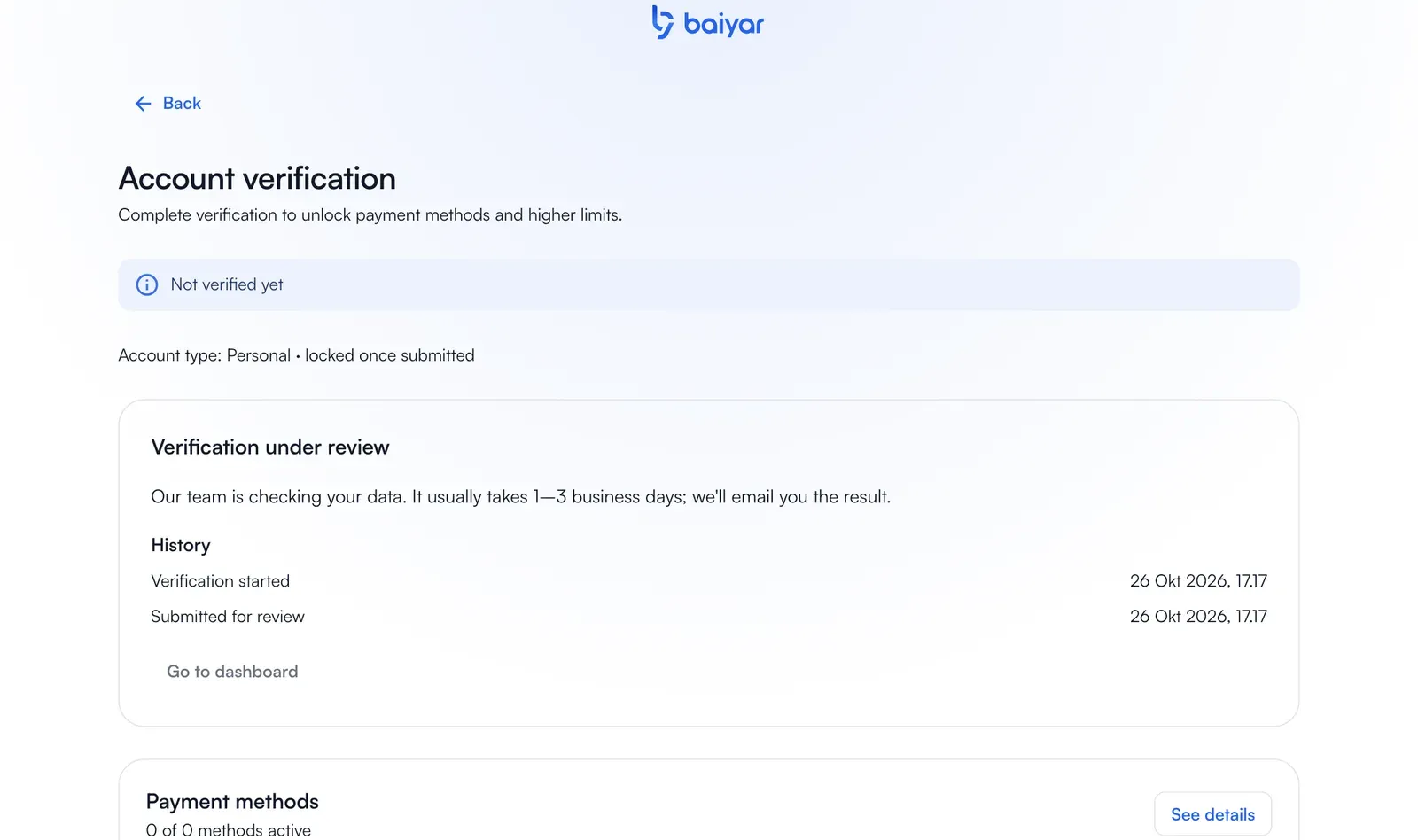
Section titled “After you submit”Our team checks your submission. You cannot edit it while it is under review.
| Status | What it means | What to do |
|---|---|---|
| Not submitted | You have not submitted yet. | Finish the form and submit. |
| Under review | Our team is checking the submission. | Wait; the status shows on the Verification page. |
| Revision requested | Something must be corrected. | Open the submission, fix the parts it lists, and send it again. |
| Approved | Verification is approved. | Continue to Go live to enable live payments for a project. |
| Rejected | It cannot proceed as it is. | Contact support to reopen it. |
| Restricted | The account is restricted. | Contact support. |
Move up a level
Section titled “Move up a level”At Level 1 or 2, open Settings → Capabilities and choose Move up to … next to your level. It opens the verification page. What you gave before is not asked again: check it, then add what is new.
After approval
Section titled “After approval”Your data becomes your business information. To change it later, you send a change request that our team reviews; see Settings.