

Payment links
Create a payment link in the dashboard or with the API, share its URL, and follow it with webhooks. No checkout page to build.
A payment link is a checkout page where the payer chooses an available method and pays. Share its URL; Baiyar displays the payment instructions and records the result.
In the dashboard
Section titled “In the dashboard”-
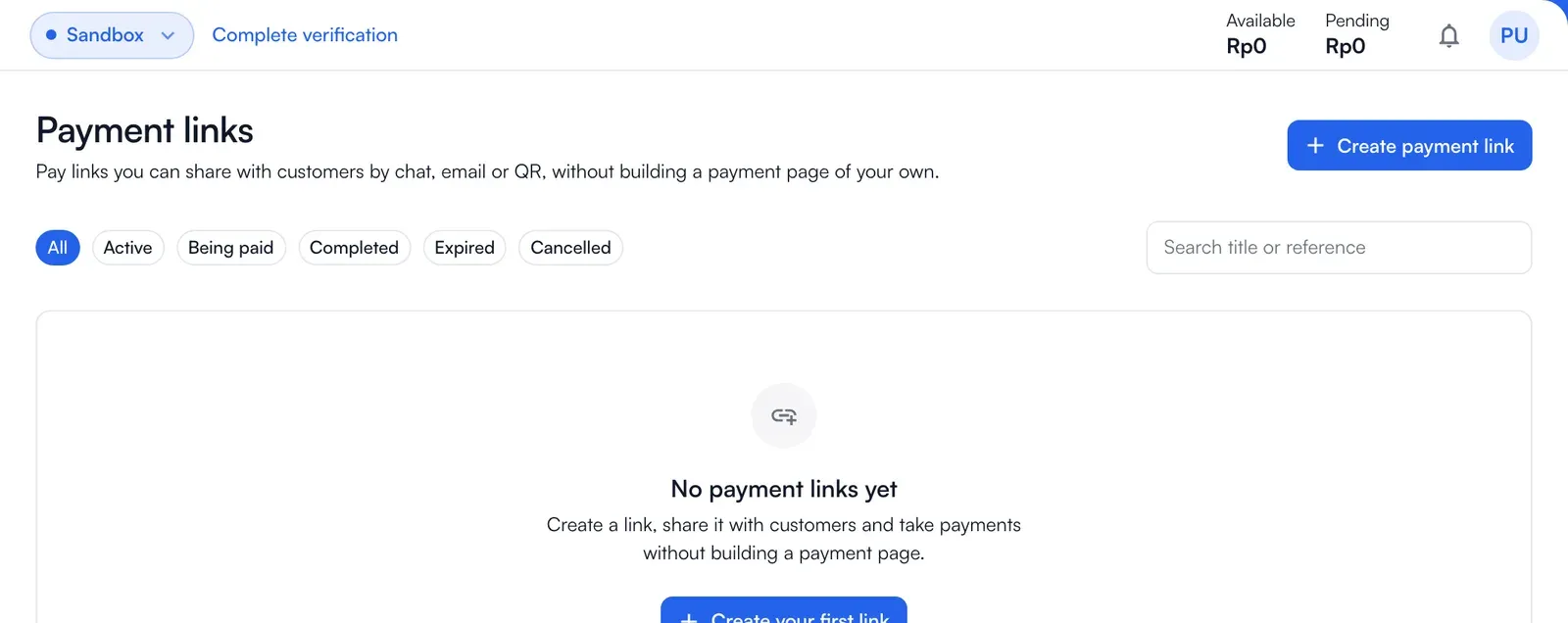
Choose Payment links in the menu and then Create a payment link. A link lives in a project, so create a project first if you have none.
-
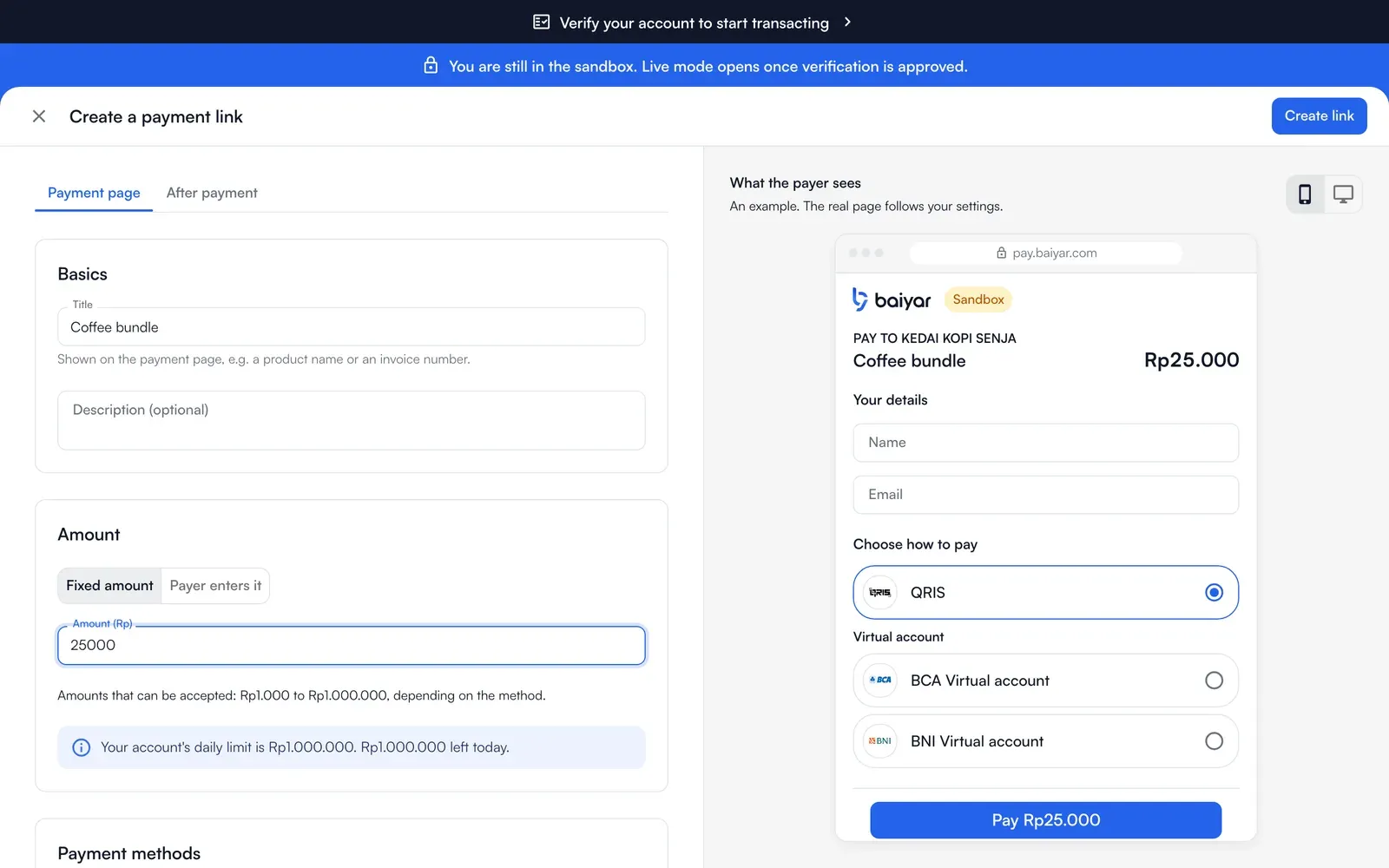
Fill in the essentials: the title the payer sees (a product name or an invoice number), an optional description, and the amount: a fixed amount, or let the payer enter it between a minimum and a maximum. What the payer sees changes beside the form while you type.
-
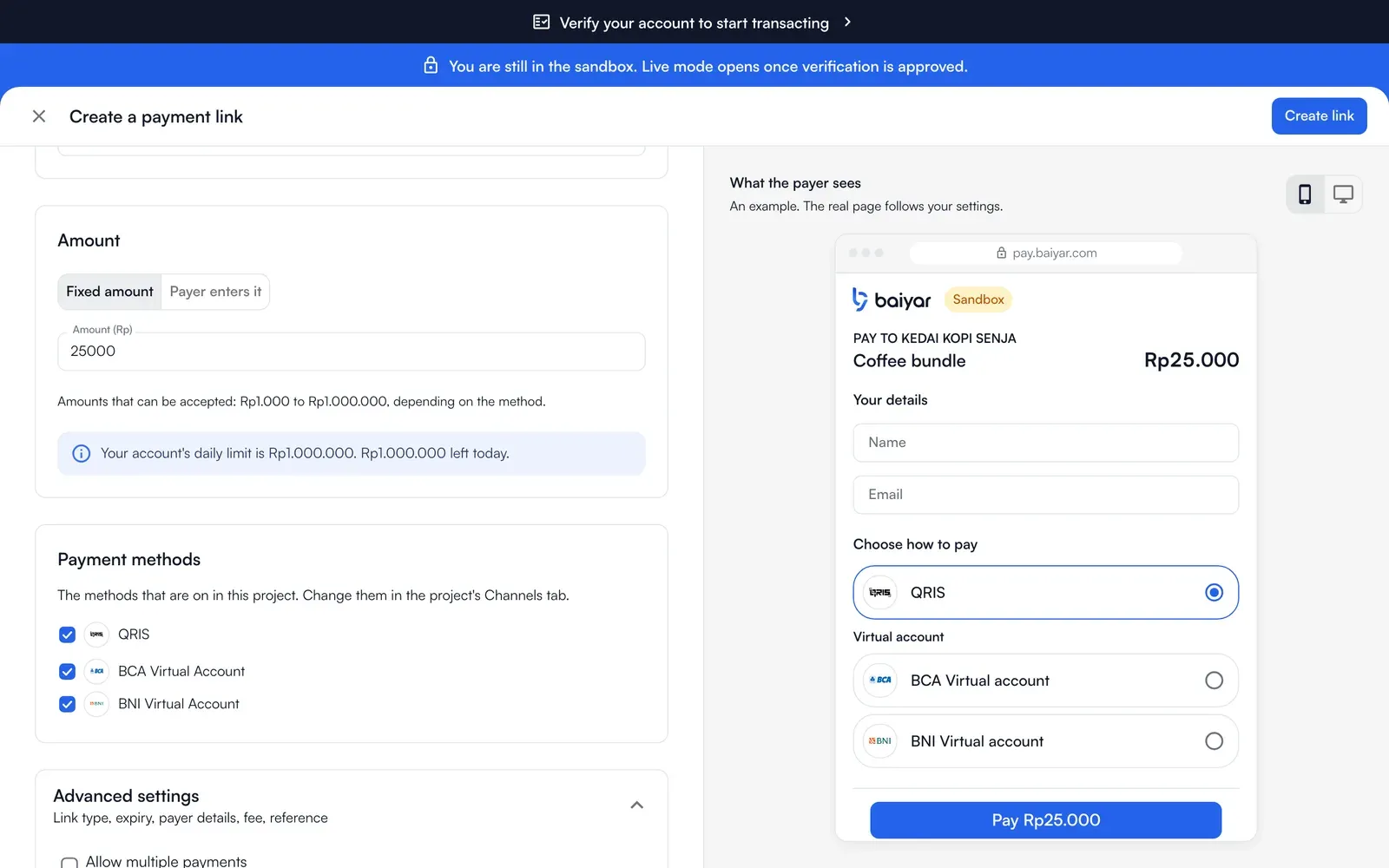
Open the advanced options if you need them: Allow multiple payments (a reusable link, optionally capped), Valid until (no time limit, tomorrow, 7 or 14 days, or a date), the payer details to ask for (name, email, phone, address), who bears the fee (use the project default, charge you, or charge the payer) and your own reference.
-
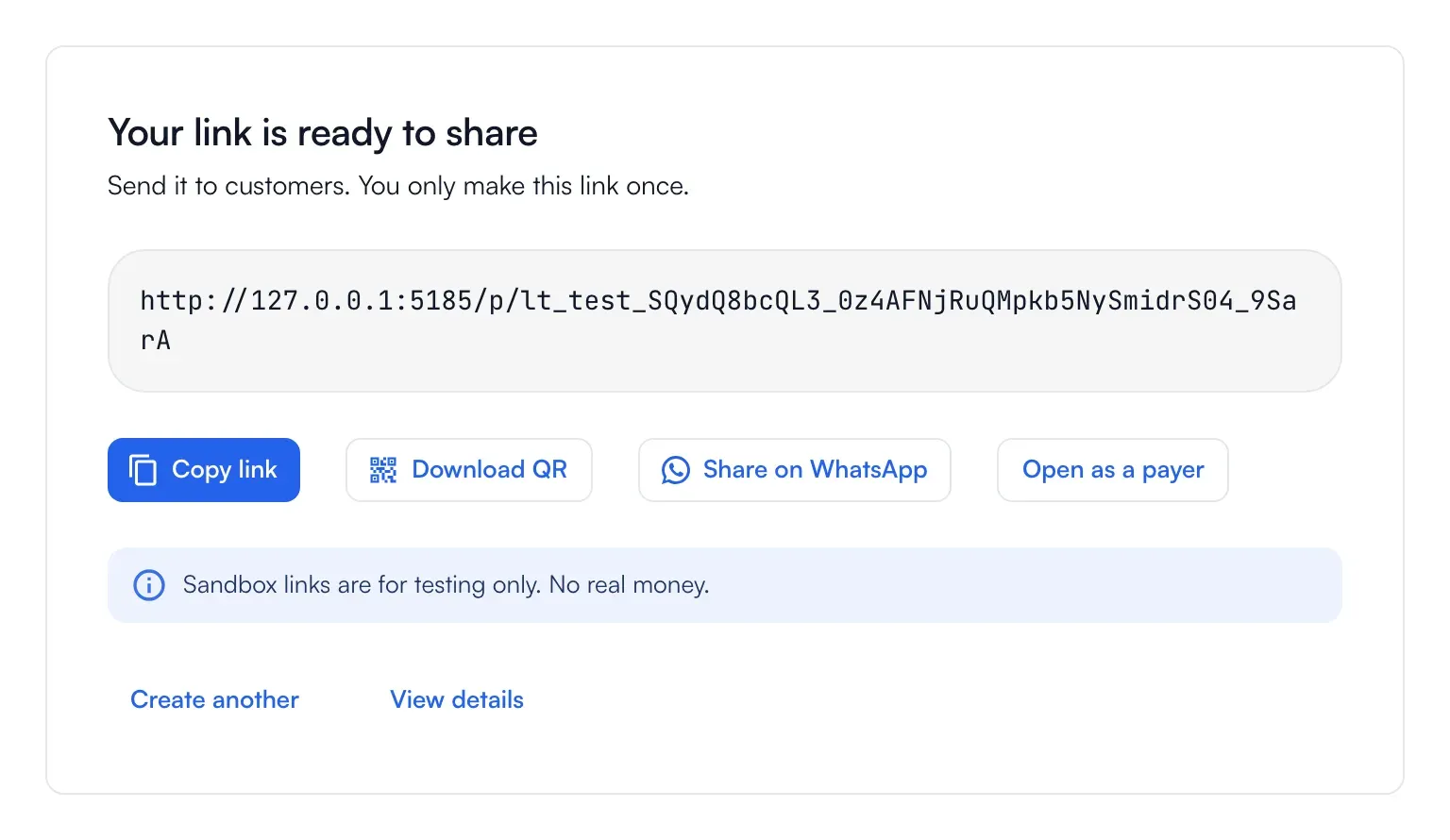
Create it. The next screen is Your link is ready to share: Copy link, Download QR, Share on WhatsApp, or Open as a payer to see what your customer sees.
A link cannot be edited after creation. Choose Duplicate to make a new version. The fee rules are fixed when you create the link, so later Baiyar price changes do not affect it.
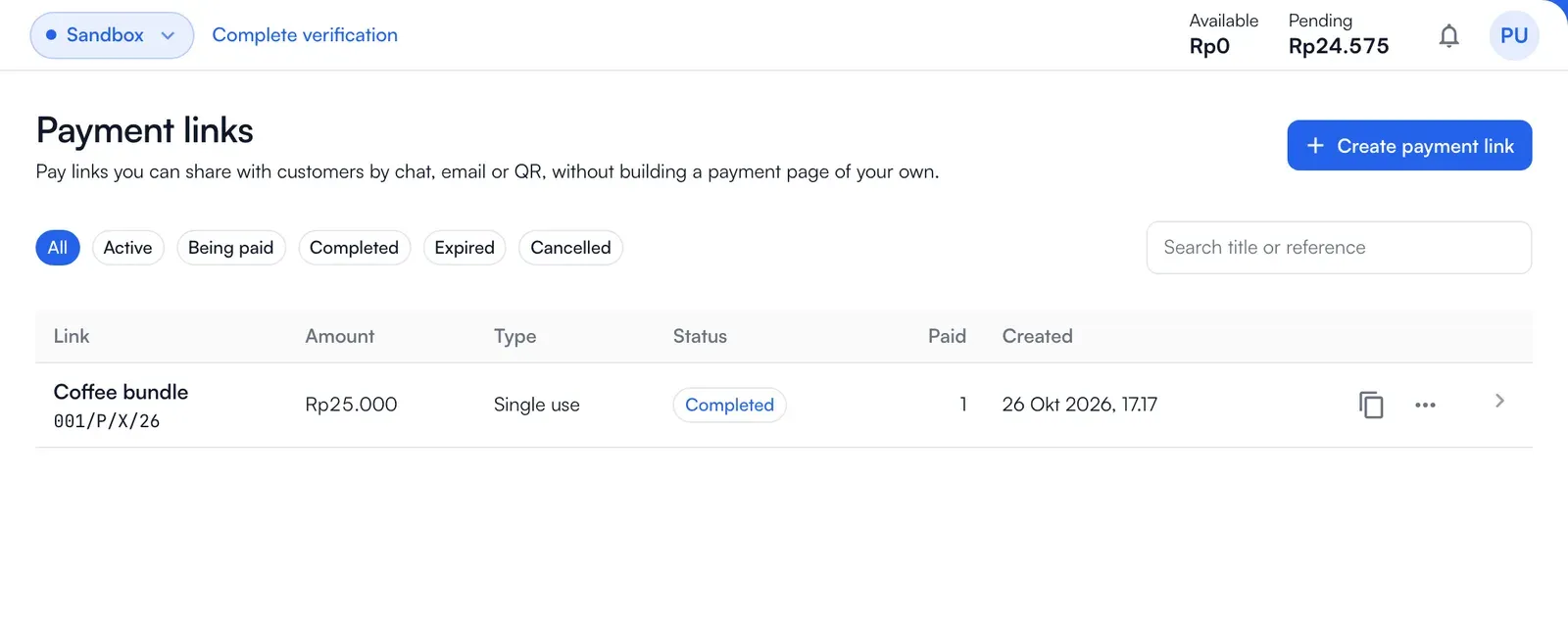
Choose Cancel link to stop new payments. A payment already opened from the link can still be completed. The link page and Transactions show those payments.
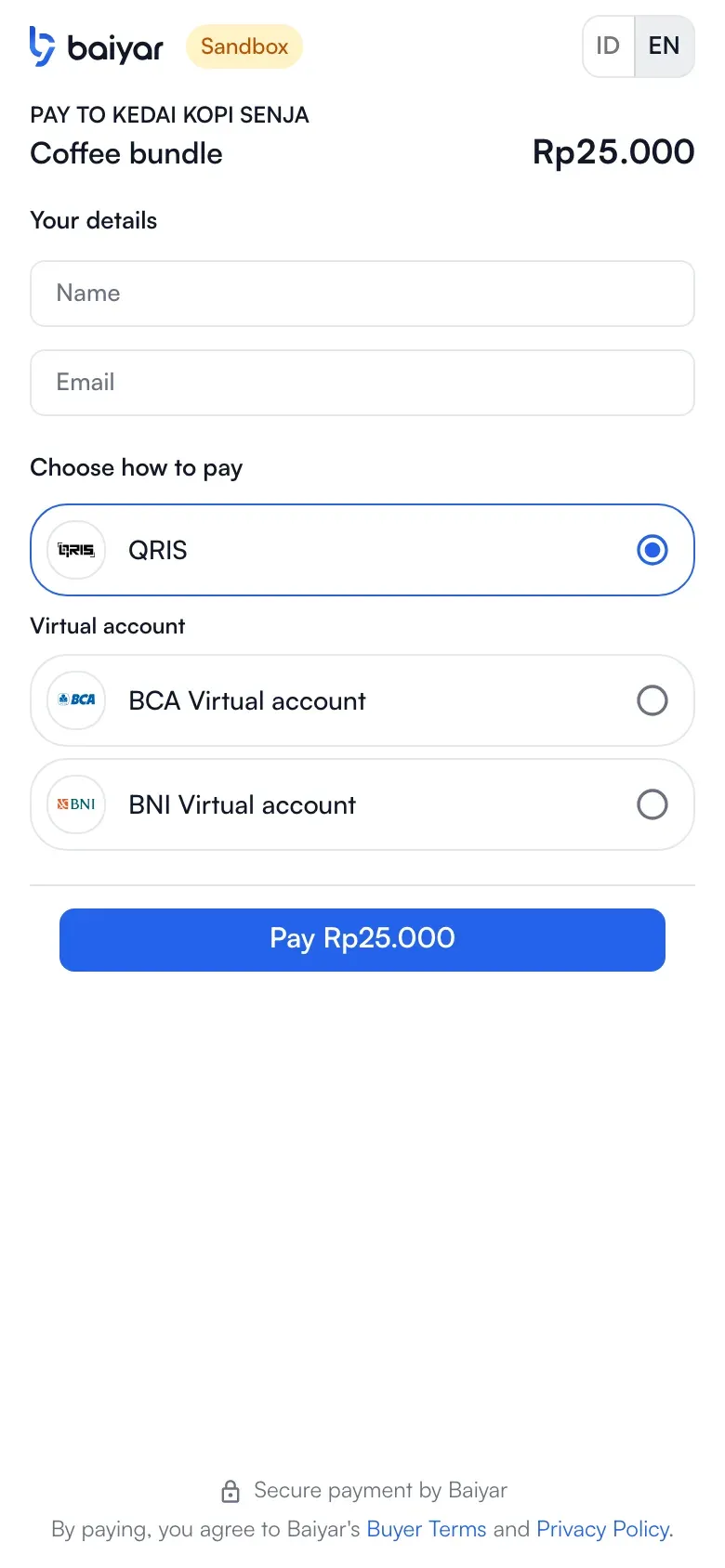
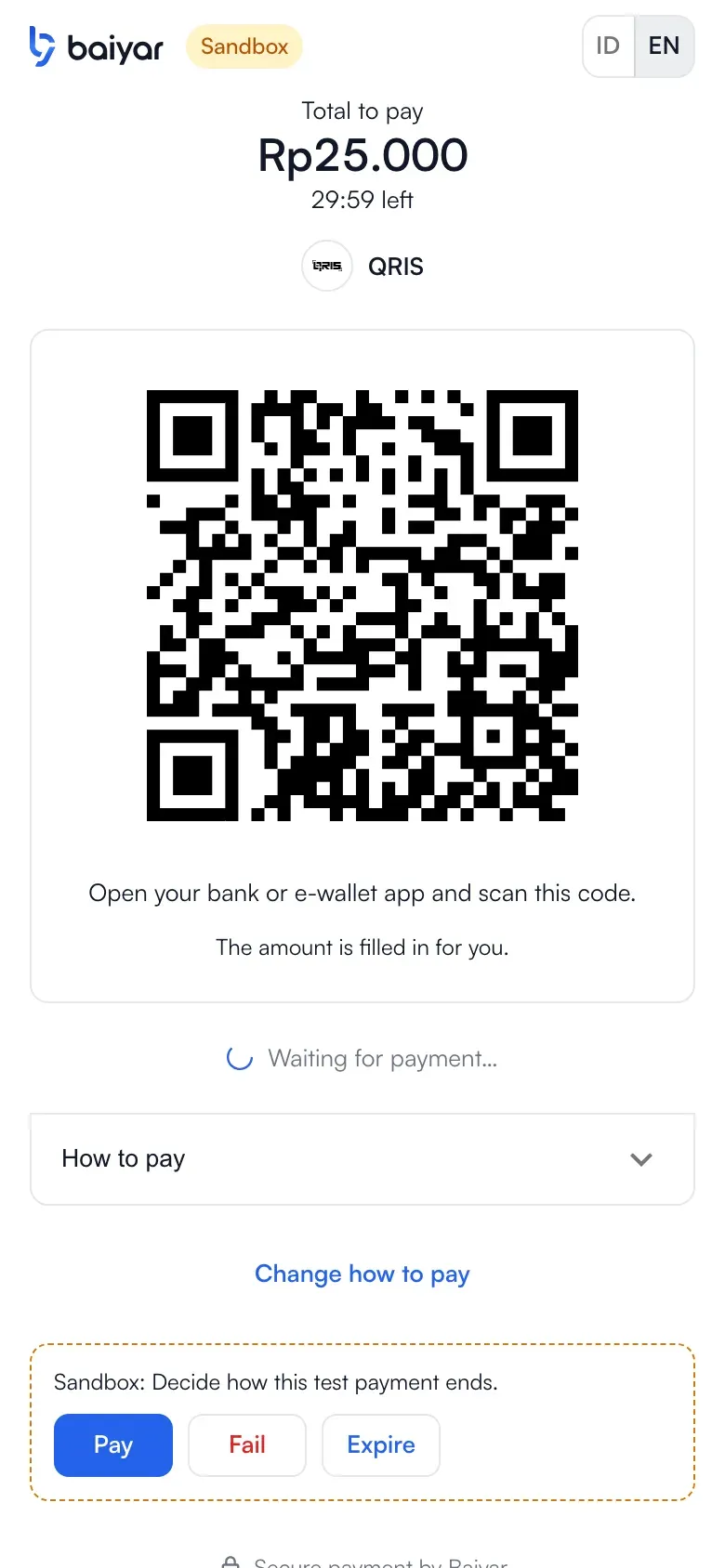
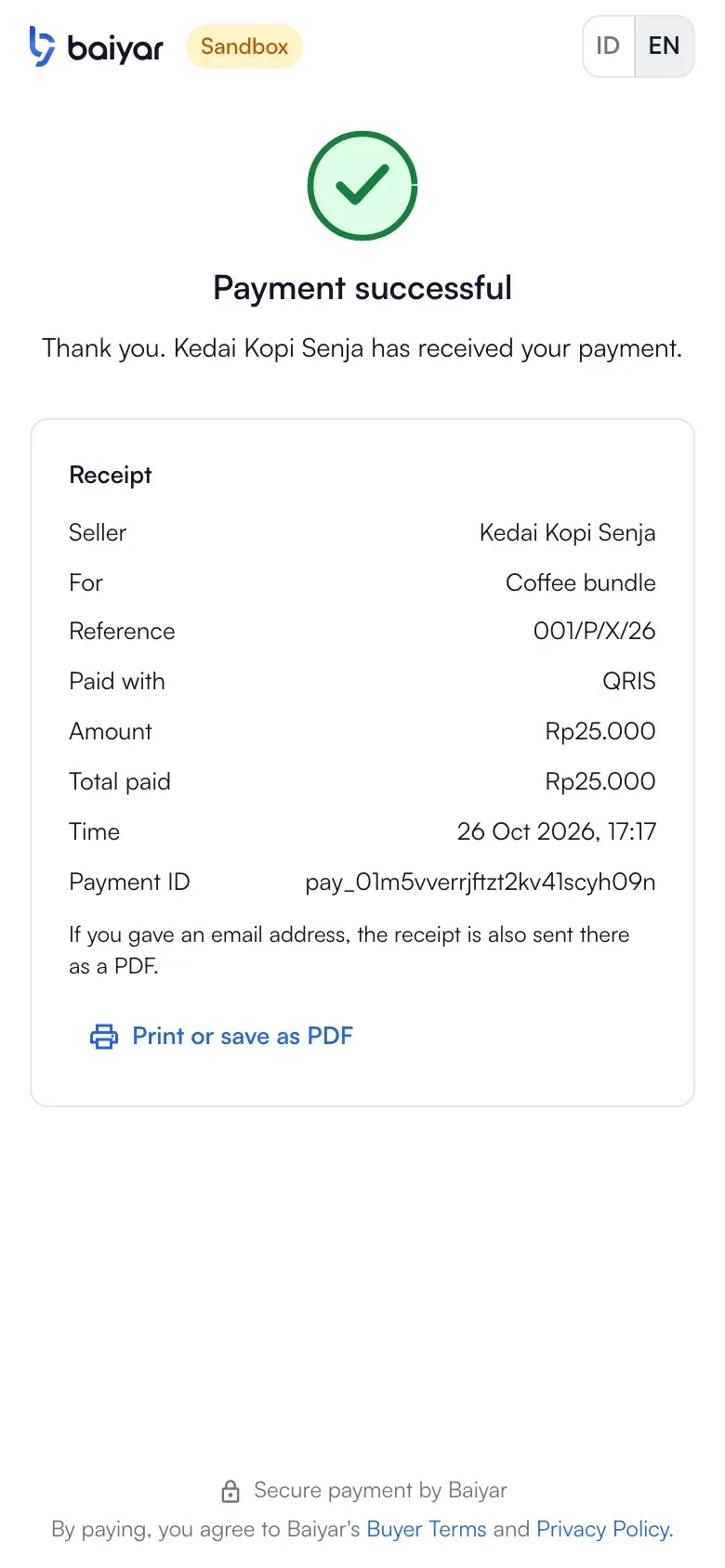
The payer opens the link, usually on a phone. They see the amount and the methods you offer, then the QR code or the virtual account number, then a receipt. In the sandbox a bar at the bottom lets you decide how the test payment ends.
To bill a customer with items, tax and a due date, use an invoice.
With the API
Section titled “With the API”Create a link with POST, share the returned url, and use GET to check its state. You can also cancel it. See the API reference for create, get and cancel.
curl "https://api.baiyar.com/v1/payment-links" \ -H "Authorization: Bearer $BAIYAR_KEY" \ -H "Idempotency-Key: invoice-2041" \ -H "Content-Type: application/json" \ -d '{ "title": "Invoice 2041", "amount": 25000000, "usage": "single_use", "fee_bearer": "merchant" }'This example assumes BAIYAR_KEY is a project key. With a merchant key, include the link’s project_id in the request. The response contains the url to share, the current state and usage stats.
Choices
Section titled “Choices”| Field | Meaning |
|---|---|
amount |
A fixed amount. Or use min_amount and max_amount and let the payer type an amount within that range. Amounts use IDR’s smallest unit: Rp25.000 is 25000000. |
usage |
single_use: one payment, then the link is done. reusable: many payments, optionally capped by max_uses. |
max_uses |
The cap on payments for a reusable link. Open and paid payments both count. |
payment_methods |
Which methods the payer may choose. By default every method of the project. |
fee_bearer |
merchant: you pay the fee. customer: the fee is added for the payer. If omitted, the project setting applies. The fee is fixed when the link is made, so a later price change does not change it. |
customer_fields |
Whether to ask for name, email, phone and address: off, optional or required. Unspecified fields default to off. |
expires_at |
When the link stops accepting payments, in ISO 8601. |
after_payment, redirect_url, confirmation_message |
Choose Baiyar’s confirmation page (the default) or a redirect to your site. redirect_url sets the destination; confirmation_message sets the text on the confirmation page. |
reference |
Your own reference. Make one up if you leave it out. |
Track payments
Section titled “Track payments”GET /v1/payment-links/{id}shows itsstate(payable,in_use,completed,expiredorcancelled) and how many payments it has.- Each payment through the link is a normal payment with
payment_link_idset, sopayment.succeededwebhooks work as usual. The link itself sendspayment_link.completed,payment_link.expiredandpayment_link.cancelled. POST /v1/payment-links/{id}/cancelstops new payments; payments already made stay.
A single-use link accepts one open payment at a time, so two payers cannot pay the same link at once.