

Sign in and keep it secure
Sign in to the dashboard, enable two-factor authentication, reset your password and review account sessions.
Sign in
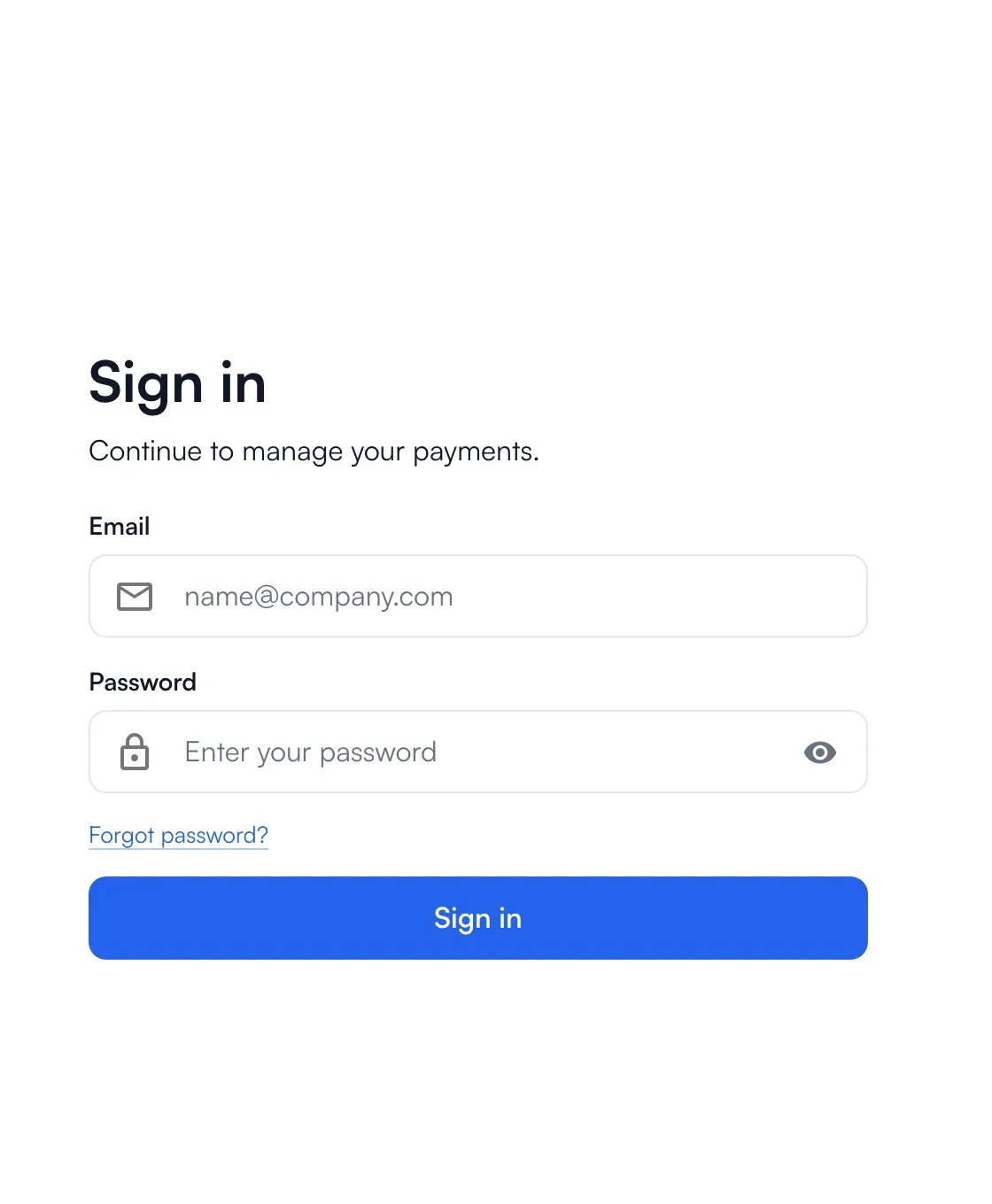
Section titled “Sign in”Enter your email and password and choose Sign in. If you are asked to open a page while signed out, you land on it after signing in.
Two-factor authentication
Section titled “Two-factor authentication”Two-factor authentication (2FA) adds a six-digit code from an authenticator app to every sign-in. It is also what confirms sensitive actions, such as creating or rotating a live API key, so turn it on before you go live.
To turn it on, open Settings → Security and find Two-factor authentication (2FA):

-
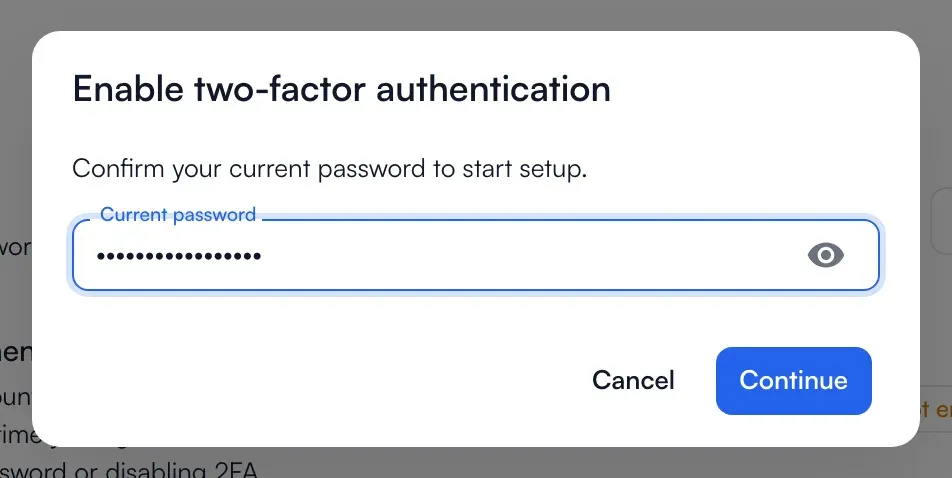
Choose Enable and confirm your current password.
-
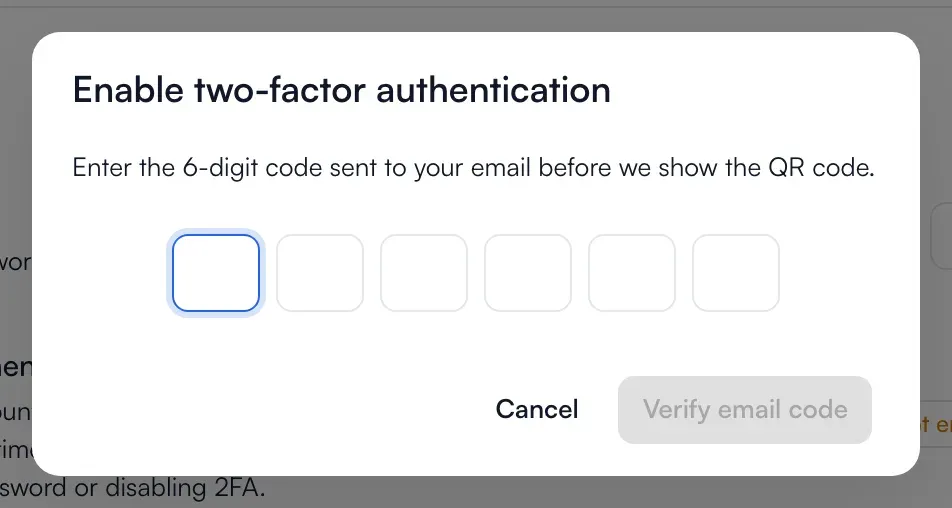
Enter the six-digit code we email you. The QR code is shown only after this.
-
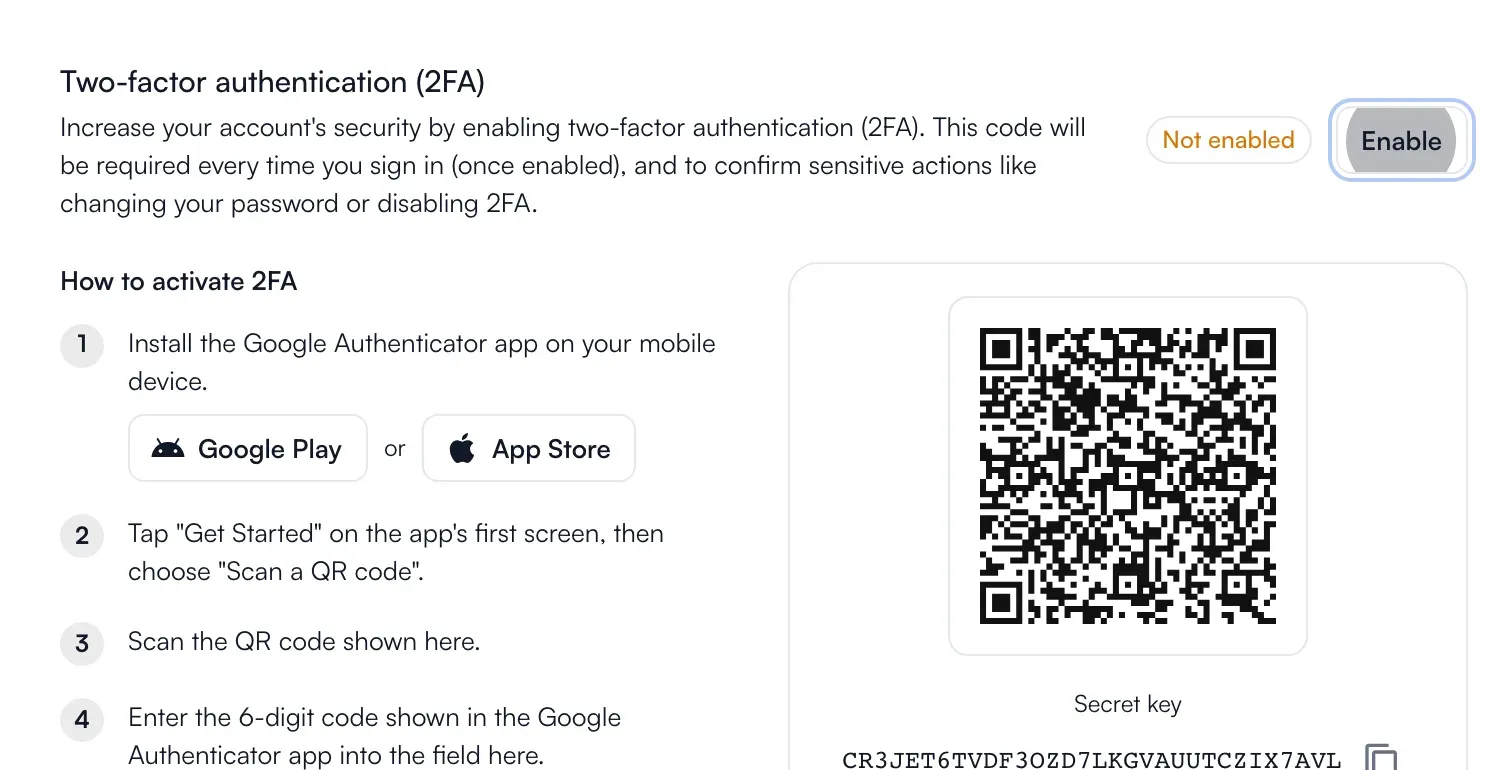
Scan the QR code with Google Authenticator (or type the secret key by hand).
-
Enter the six-digit code the app shows and choose Verify & enable.
From then on, signing in asks for the code after your password. To turn it off, choose Disable and enter your password and a current code.
Forgot your password
Section titled “Forgot your password”On the sign-in page choose Forgot password?, enter your email, and open the link we send. The link is valid for one hour. Choose a new password that follows the same rules as at sign-up, and you are taken back to sign in.
Where you are signed in
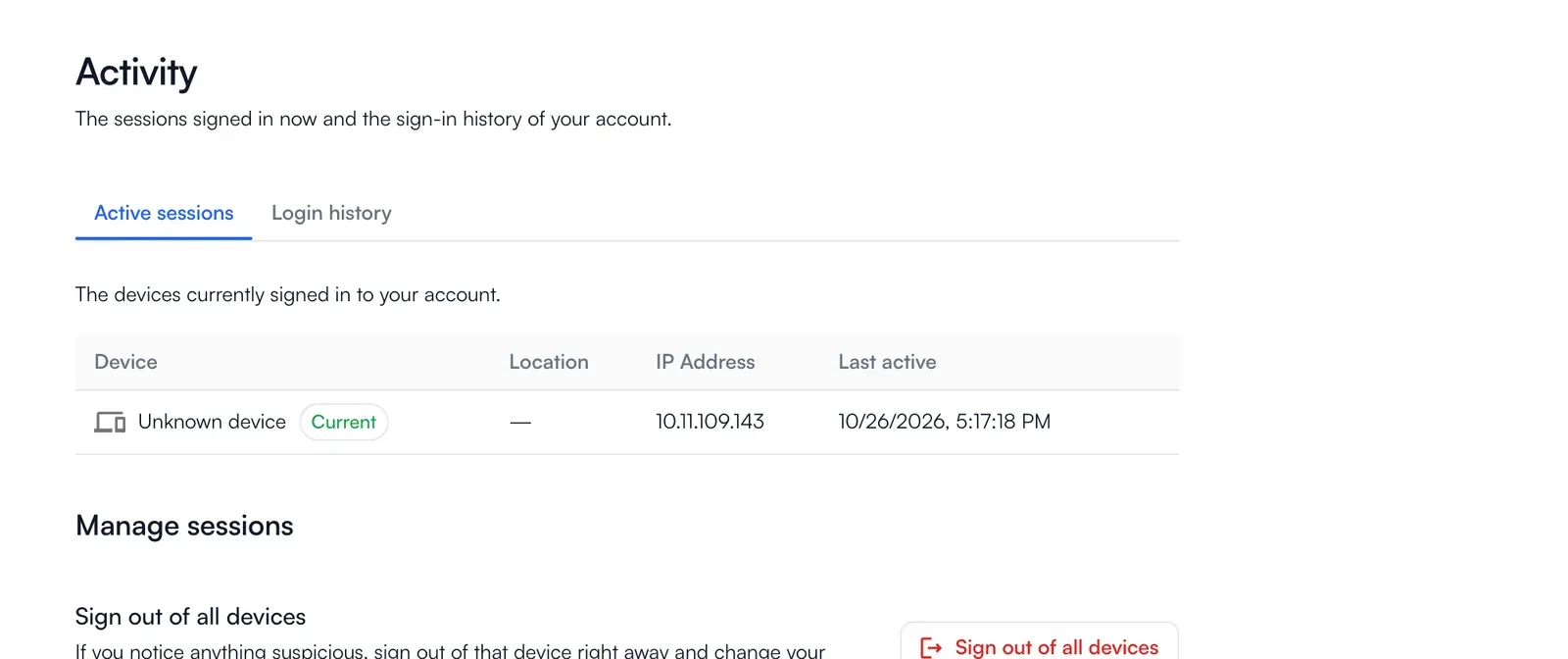
Section titled “Where you are signed in”Settings → Account Activity has two tabs: Active sessions, the devices that are signed in right now, and Login history.
Failed sign-in attempts
Section titled “Failed sign-in attempts”Failed attempts are counted per user, not per device. Five wrong passwords or five wrong security codes in 15 minutes temporarily lock further attempts. The page shows how long to wait.