

Go live
The checklist between a working sandbox integration and real payments: approved verification, an approved project, a live key and a first small payment.
Use the integration that works in the sandbox for live as well. Switch to the live project and API key; the host stays the same.
Checklist
Section titled “Checklist”-
Verification is approved. The Live mode in the environment switcher opens once it is. See Verify your account.
-
Two-factor authentication is on, because live keys ask for a second factor. See Sign in and keep it secure.
-
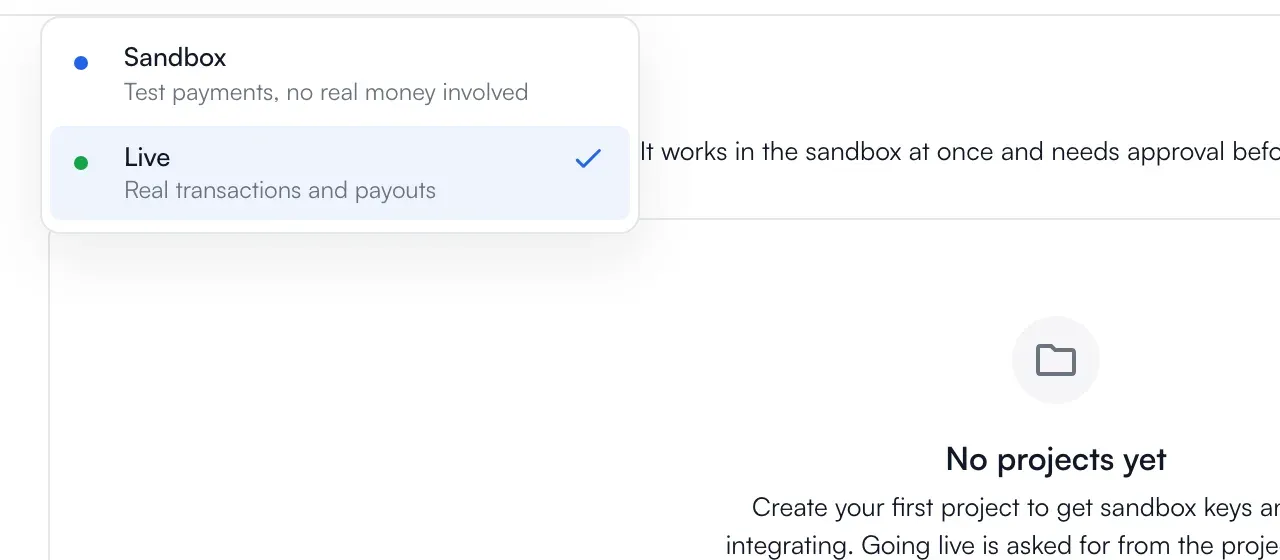
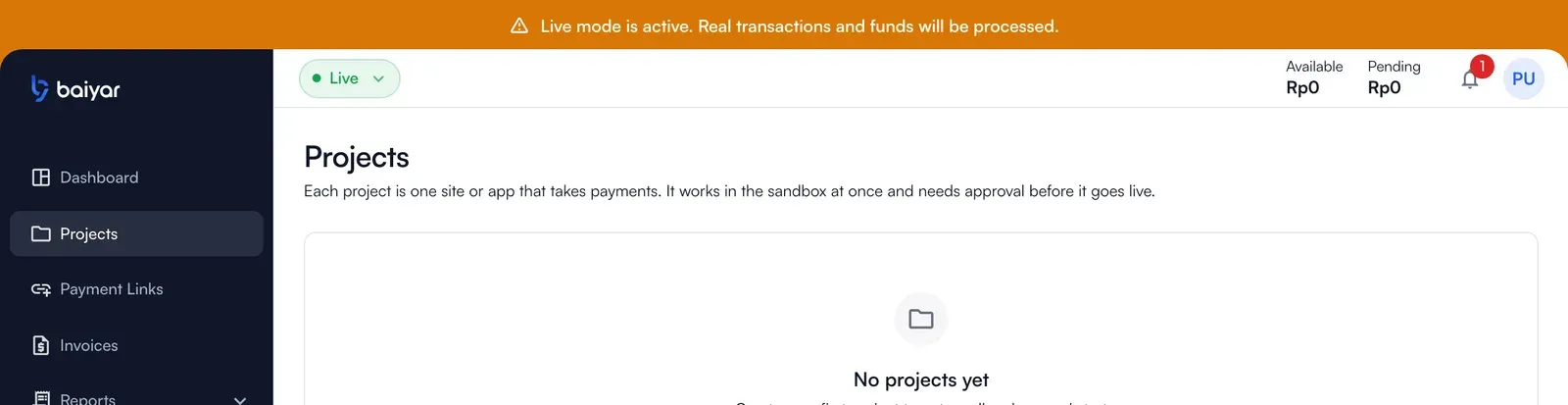
Switch to Live with the environment switcher. The banner says that real transactions and funds are processed.
-
Create the live project, or use Import from sandbox to copy an active sandbox project.
-
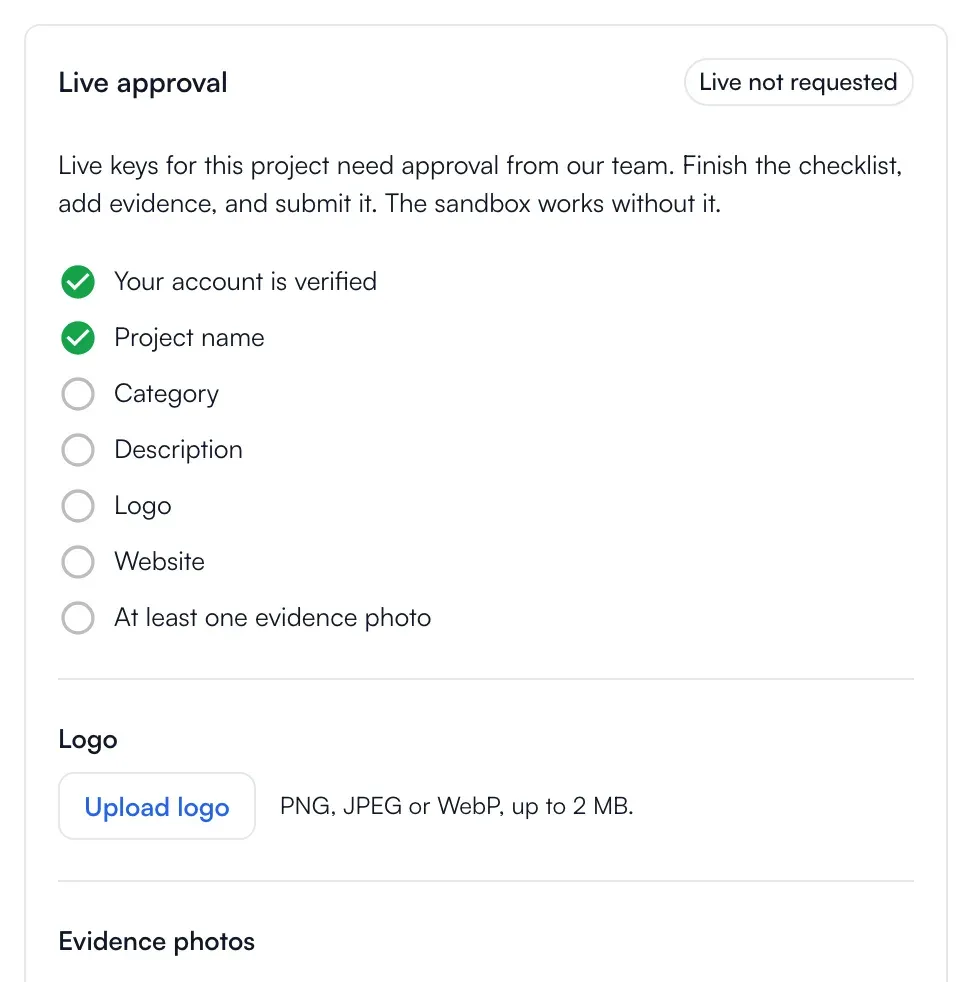
Complete the project and send it for review. A live project needs a description and at least one project evidence photo. Choose Submit for review.
- In review: an admin is looking at it, and the project cannot be edited.
- Needs revision: the admin left notes. Change what they asked, then Resubmit.
- Approved: the project accepts real payments.
-
Check the payment methods of the project. In live you get the methods your account level and the providers allow; the Capabilities page in Settings shows what is active and what is left to do for the rest.
-
Create a live API key, with only the permissions it needs and, if you can, the addresses of your servers. See Get your API keys.
-
Register your live webhook endpoint. Endpoints are per environment: the ones you made in the sandbox do not receive live events. See Webhooks.
-
Change the key and the host in your server:
https://api.baiyar.comand thebk_live_…key. -
Make one small live payment and check it in Transactions and Balance.
Account limits
Section titled “Account limits”Your account level decides the methods and the limits. A payment above what your level allows is refused, and the payment page switches a method off with a reason instead of failing the whole link. To raise the limits, move up a level.
If something is blocked
Section titled “If something is blocked”- Live is locked: verification is not approved yet. Choose Complete verification in the header.
- Live keys are locked: your account has no approved level yet.
- Restricted account: contact support.