
Create a project
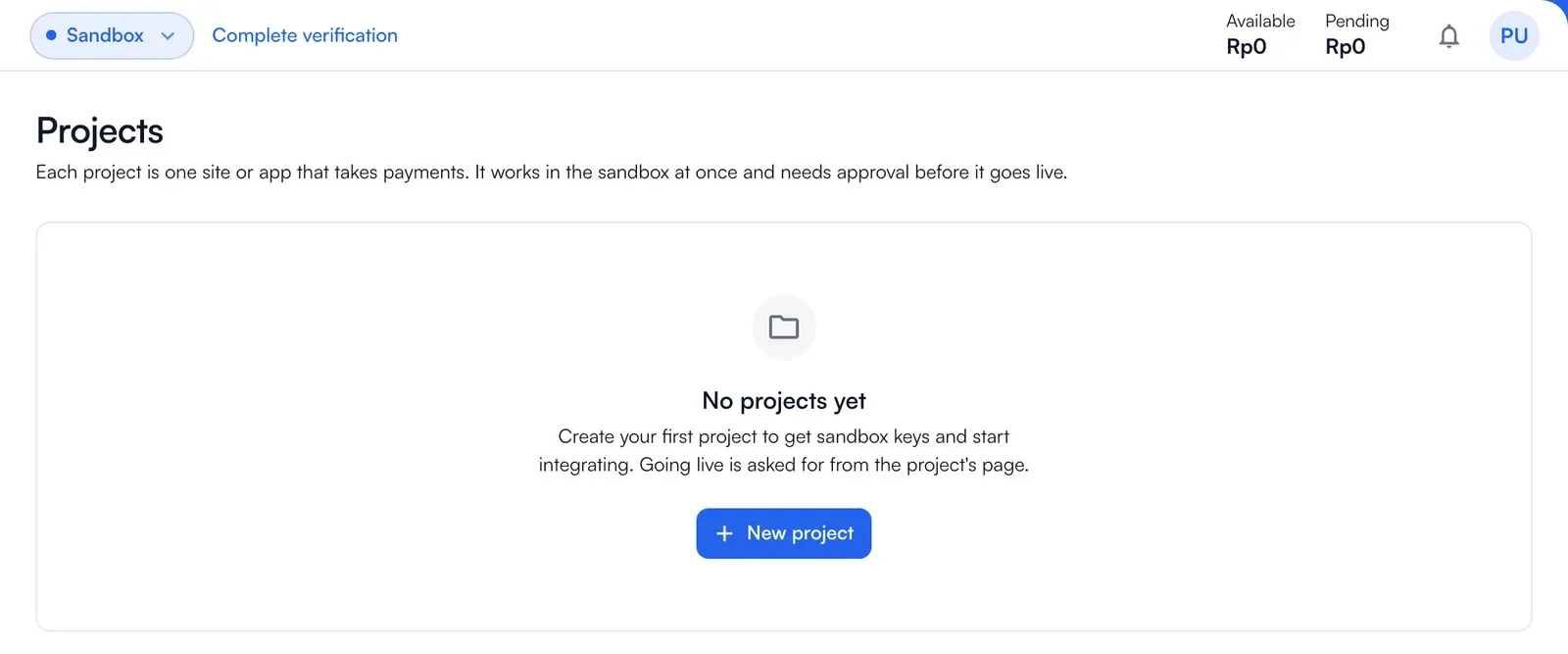
A project holds one integration: its payment methods, its API keys and its payment links. Create one in the sandbox, then bring it to live.
Create a project for each business, app or site that accepts payments. Its methods, payment links, transactions and API keys belong to that project. Sandbox and live projects are separate.
Sandbox and live
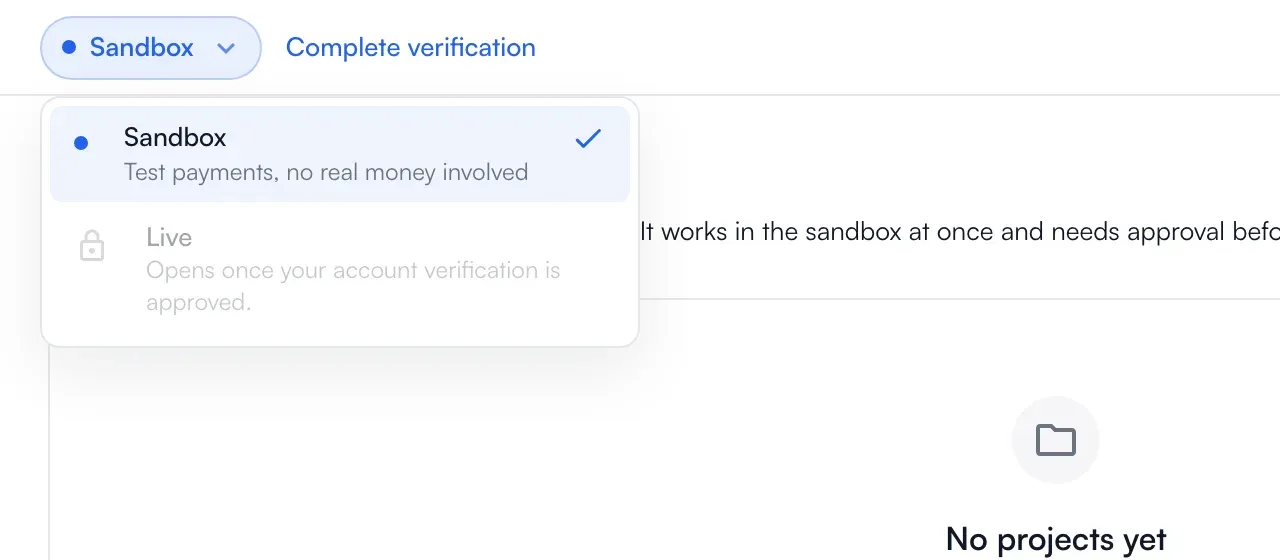
Section titled “Sandbox and live”The environment switcher in the header has two modes. Sandbox is for test payments with no real money, and its banner says so. Live processes real transactions and funds, and stays locked until your verification is approved. Everything on a page (projects, keys, links, transactions) belongs to the environment you are in.
Create a project
Section titled “Create a project”-
Choose Projects in the menu and then Create project.
-
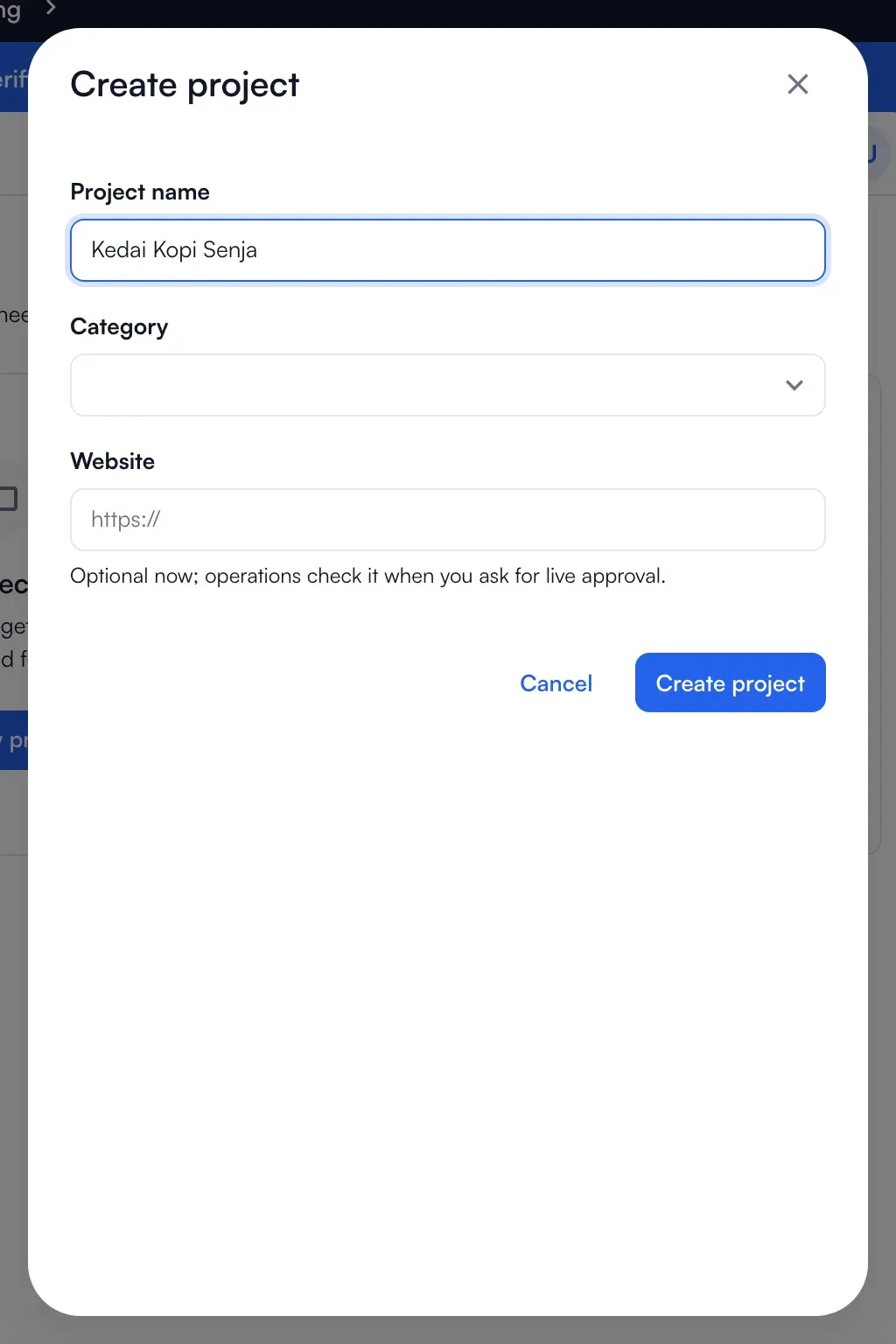
Give it a name, and a description of the business and what the project sells. In the sandbox the name is enough to start; the rest can be filled in later.
-
Open the project to set it up.
Your account level limits the number of projects. The dashboard shows how many you have used and your account limit.
Set it up
Section titled “Set it up”On the project page:
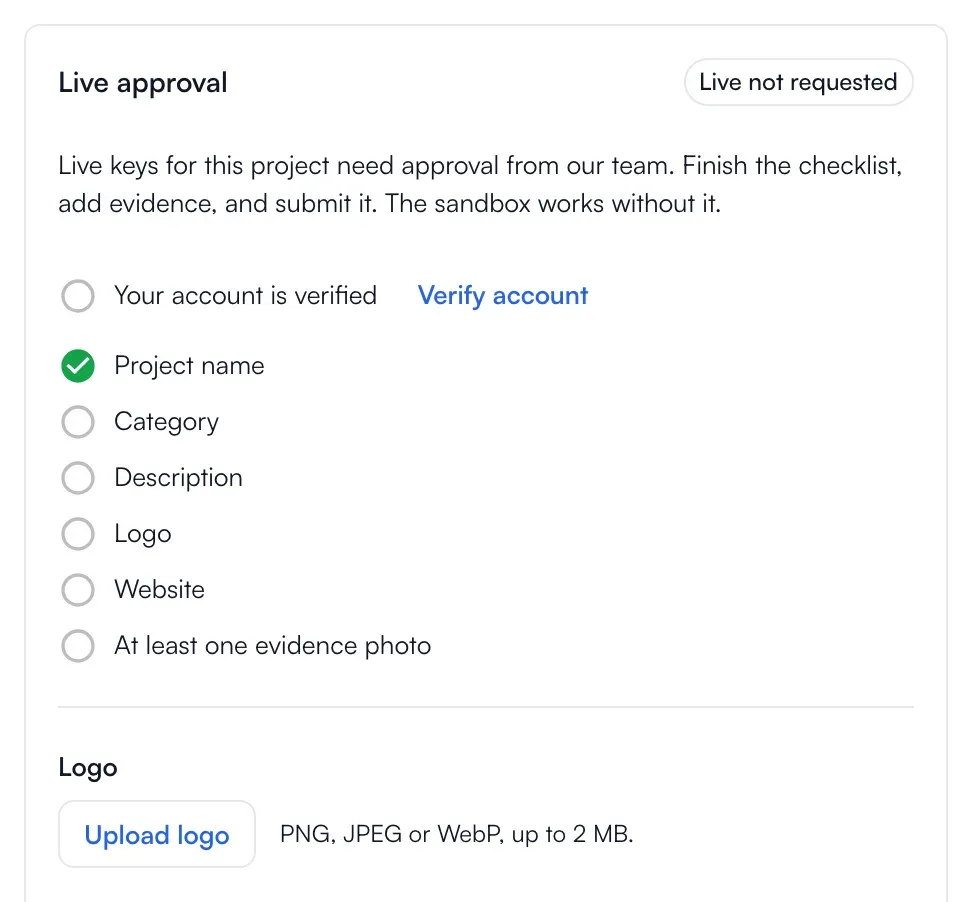
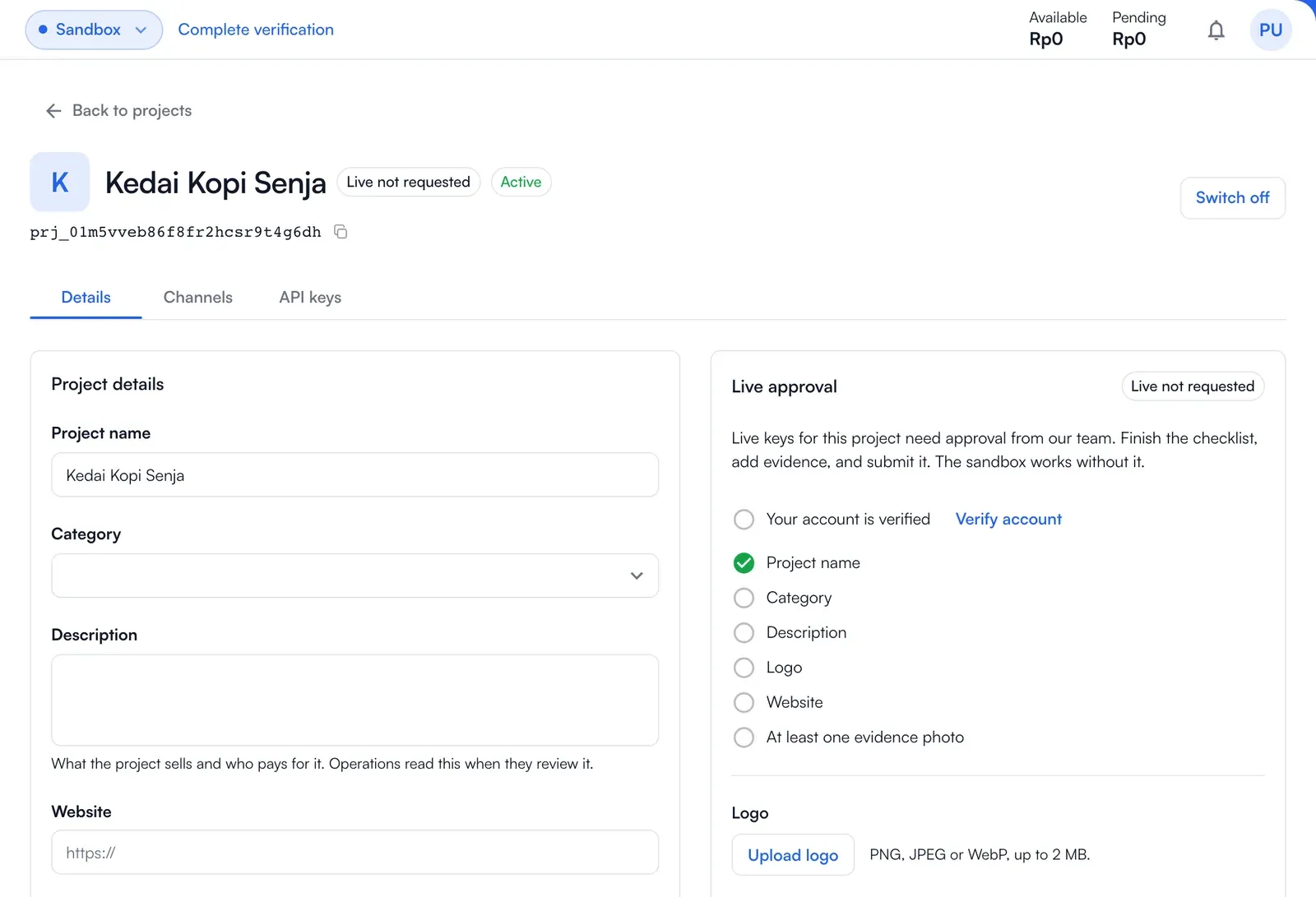
- Project details and description: the name, the category and a description. A description and at least one project evidence photo (shown only to our reviewers) are needed before the project can go live.
- Logo: PNG, JPEG or WebP up to 2 MB. It appears on the payment page of the project’s links.
- Transaction fee payer: who pays the fee on new payments, you or the payer. A payment link can override it.
- Payment methods: the methods the project accepts, grouped as QRIS, virtual accounts and so on. These are the defaults for new payment links, and a link can narrow them. In the sandbox every method is available; in live you get the methods your account level and the providers allow.
- API keys: keys made here work for this project only. See API keys.
- Payment links: the links made for this project.
- Project status: Active or Inactive. While inactive no new payments are accepted, and links and integrations on it stop working until you reactivate it.
Bring a project to live
Section titled “Bring a project to live”A live project must be approved by our team before it accepts real payments. See Go live. To save work, Import from sandbox (in the new-project menu, in live) copies an active sandbox project that has not been copied yet.