
Business Verification
Overview
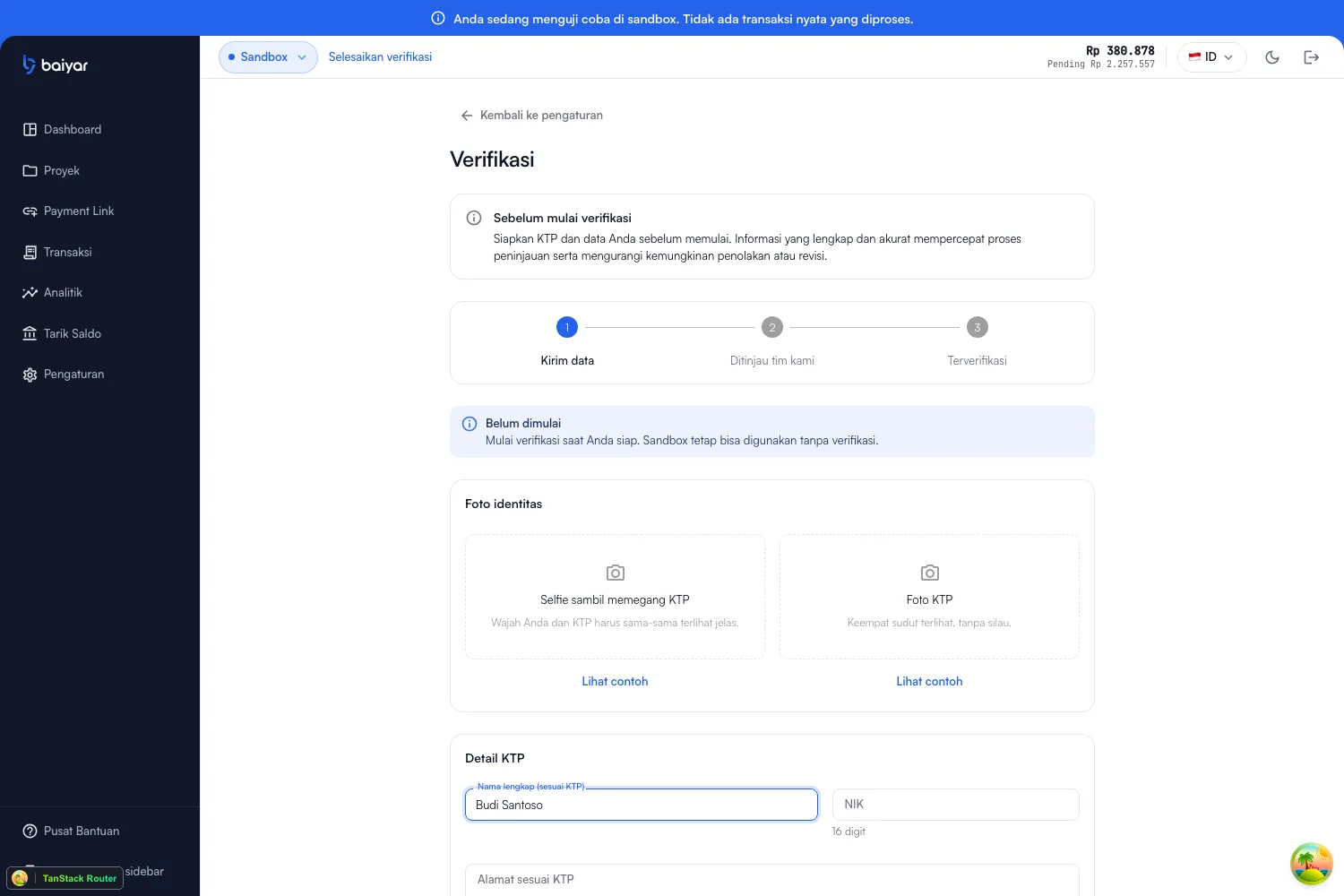
Section titled “Overview”Production access unlocks once your identity verification is approved — that’s the only requirement. Sandbox stays fully usable while your submission is reviewed, so verification is never a blocker to start building. Submit it from Verification in the dashboard (Settings → Verification), which tracks your progress through three steps — Submit information, Reviewed by our team, Verified:
Before you start
Section titled “Before you start”Have your physical KTP on hand. Complete, accurate information speeds up review and reduces the chance of a rejection or revision request.
What you submit
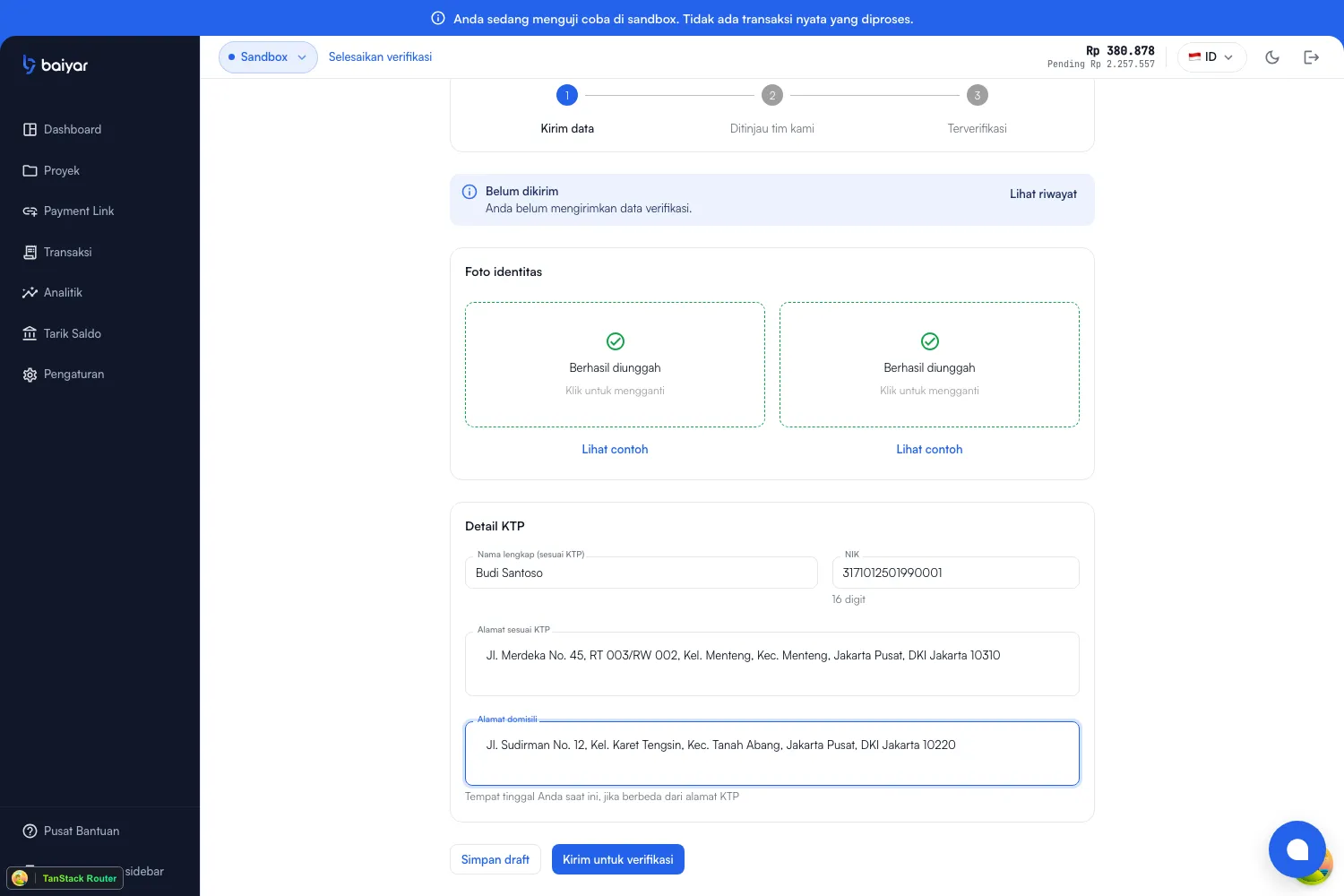
Section titled “What you submit”Two photos, and four details from your KTP:
Identity photos
Section titled “Identity photos”| Photo | What it needs |
|---|---|
| Photo of your KTP | The entire card, flat and in focus — all four corners visible, no glare |
| Selfie holding your KTP | Your face and the KTP both clearly visible in the same shot |
Each upload has a View example guide with good/bad reference photos. For the KTP photo, the guide checks for your full name, 16-digit NIK, address, and date of birth all being readable on the card. For the selfie, it checks that your face is fully visible and well-lit, the KTP is held next to your face (not covering it) with its text readable, and that the photo has no filters, cropping, or heavy editing — and that it’s your original physical KTP, not a photocopy, printout, or a photo of a screen.
Uploading either photo happens immediately (not on form submit) — each box shows a progress spinner, then a checkmark once it’s stored. You can click an uploaded photo again to replace it, as long as the verification is still editable (see below).
KTP details
Section titled “KTP details”| Field | Notes |
|---|---|
| Full name | Exactly as printed on your KTP |
| NIK | 16 digits |
| Address on KTP | As printed on the card |
| Domicile address | Where you currently live, if different from your KTP address — otherwise, enter the same one |
Draft vs. submit
Section titled “Draft vs. submit”Two separate actions, both at the bottom of the form:
- Save draft — stores whatever you’ve filled in so far, without starting review. Come back and finish later; nothing is time-limited.
- Submit for verification — sends everything (photos and details) for review. Once submitted, the entire form becomes read-only — no further edits — until a reviewer acts on it.
Review statuses
Section titled “Review statuses”The Verification page shows one of these statuses:
| Status | What it means |
|---|---|
| Not started | Start your verification when you’re ready — sandbox stays available without it |
| Not submitted | You’ve saved a draft but haven’t submitted it yet — still editable |
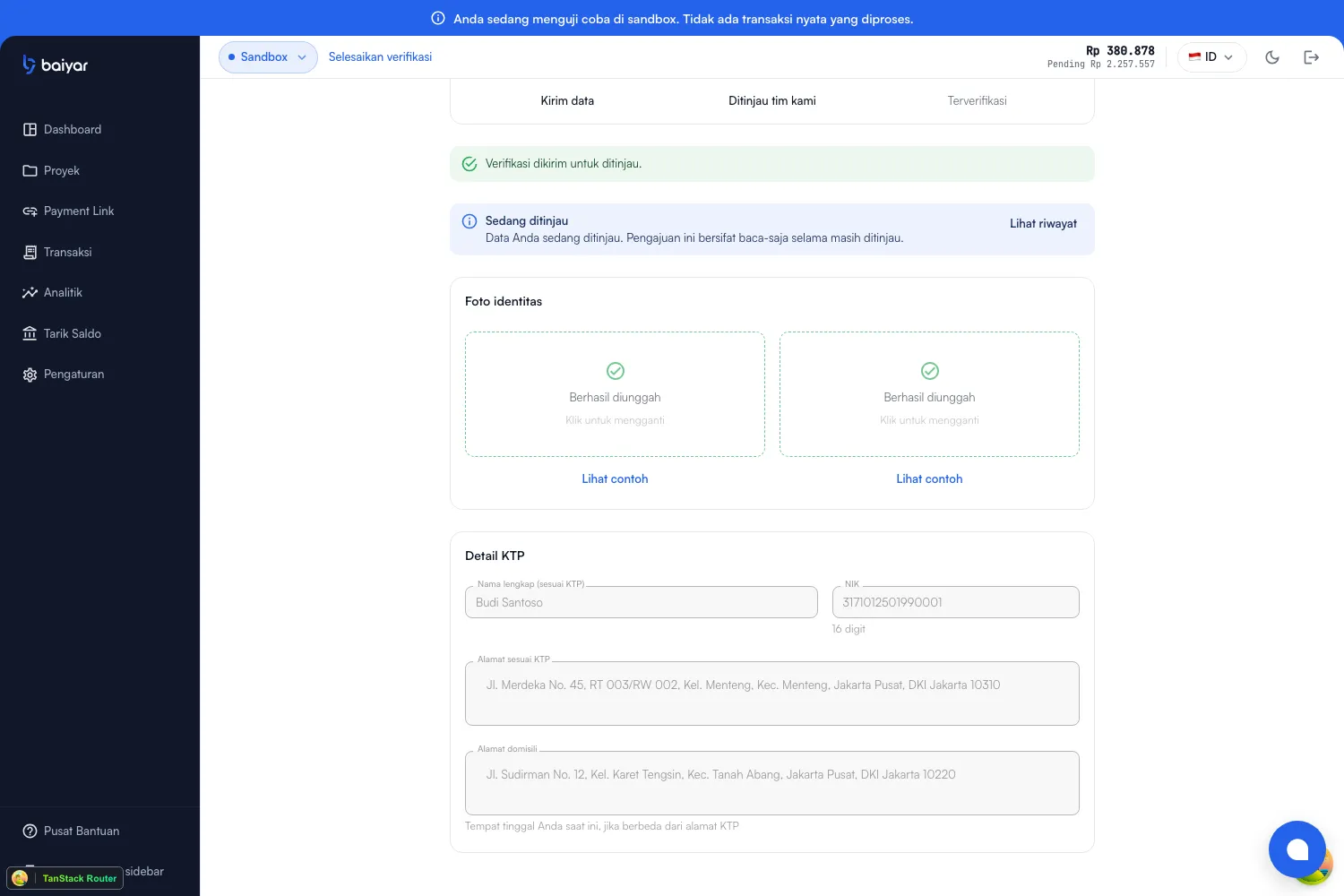
| Under review | Your information is being reviewed; the submission is read-only until it’s done |
| Revision requested | Some information needs to be corrected before review can continue — editable again |
| Approved | Your verification is approved and production access is unlocked |
| Rejected | This submission can’t proceed — contact support for next steps |
| Restricted | This account is restricted — contact support for next steps |
History
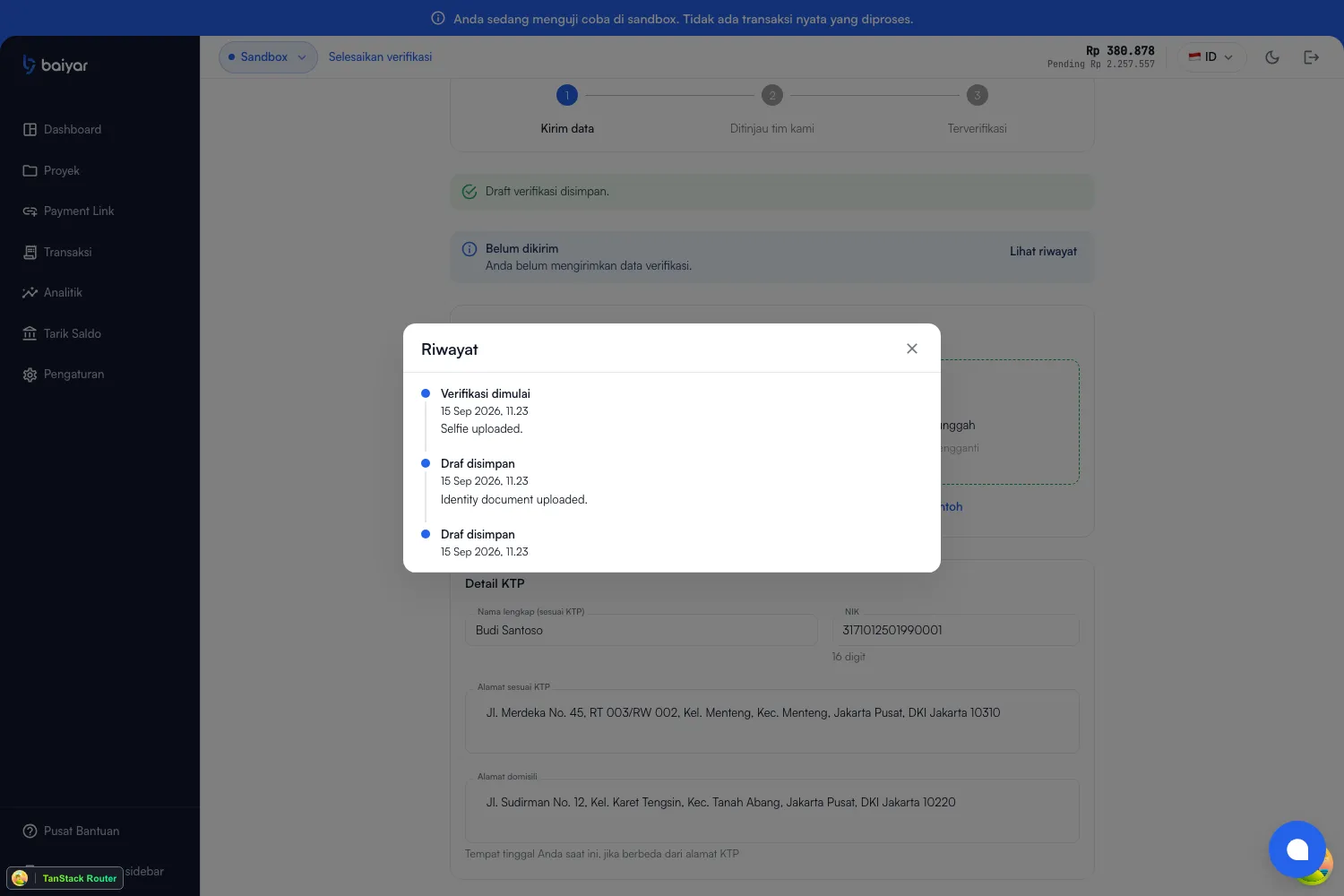
Section titled “History”Once your verification has more than one event on record (for example, after a document upload followed by a submit), a View history button appears next to the status. It opens a full timeline, each entry with its own timestamp and a short note on what happened — “Selfie uploaded,” “Submitted for review,” and so on:
After you submit
Section titled “After you submit”Submitting moves you to Under review and locks the form — every field and both photos turn read-only, and the Save draft / Submit buttons disappear entirely until a reviewer acts:
Why it gates production
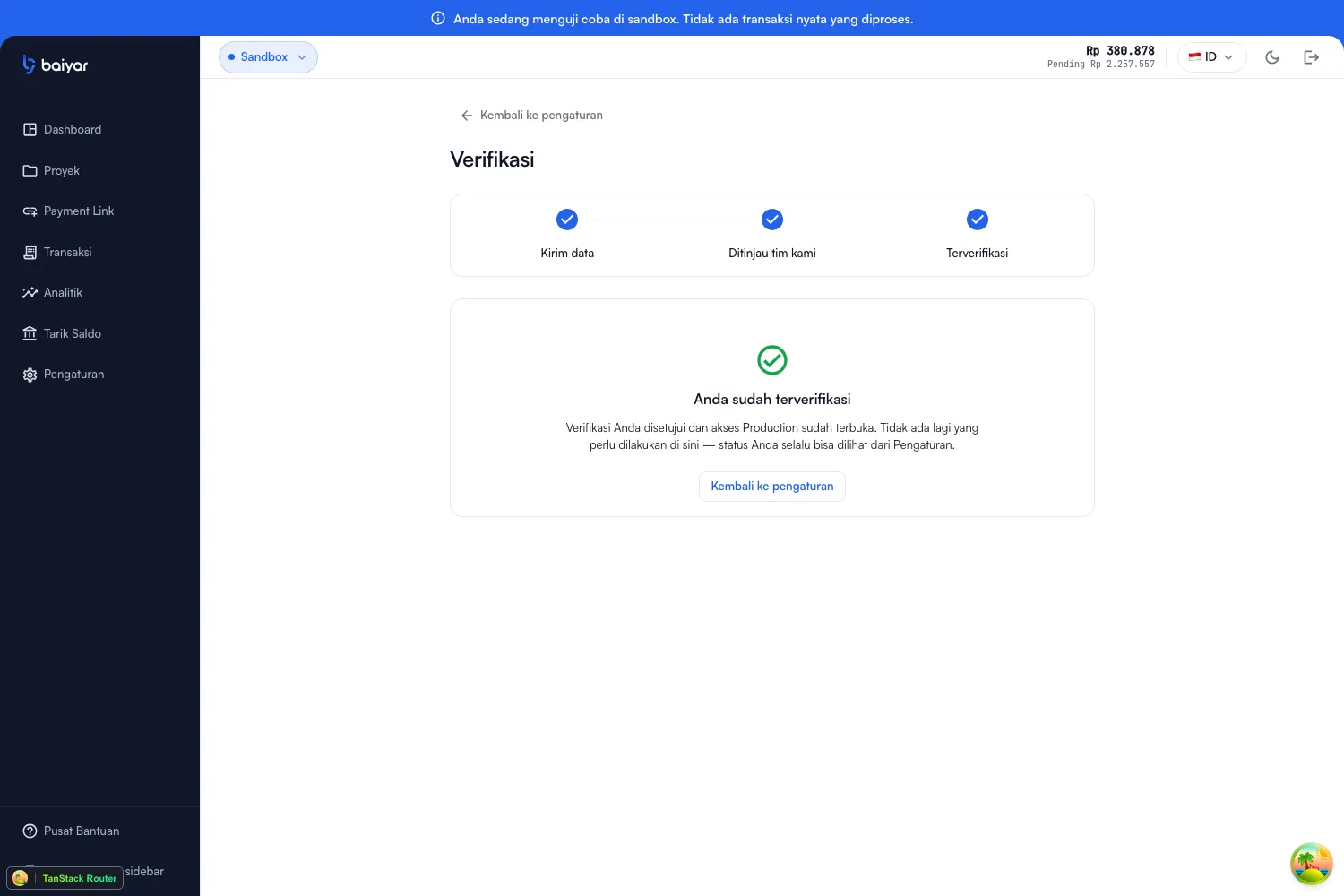
Section titled “Why it gates production”Baiyar enforces this at the database level, not just in the UI: your merchant account’s production environment cannot reach an active status unless your KYC status is Approved at that moment — see Environments for how sandbox and production are otherwise isolated. Once approved, the form is replaced by a simple completion notice:
Next steps
Section titled “Next steps”Once you’re Approved, continue to Go Live to create a production API key.