
Transactions
Overview
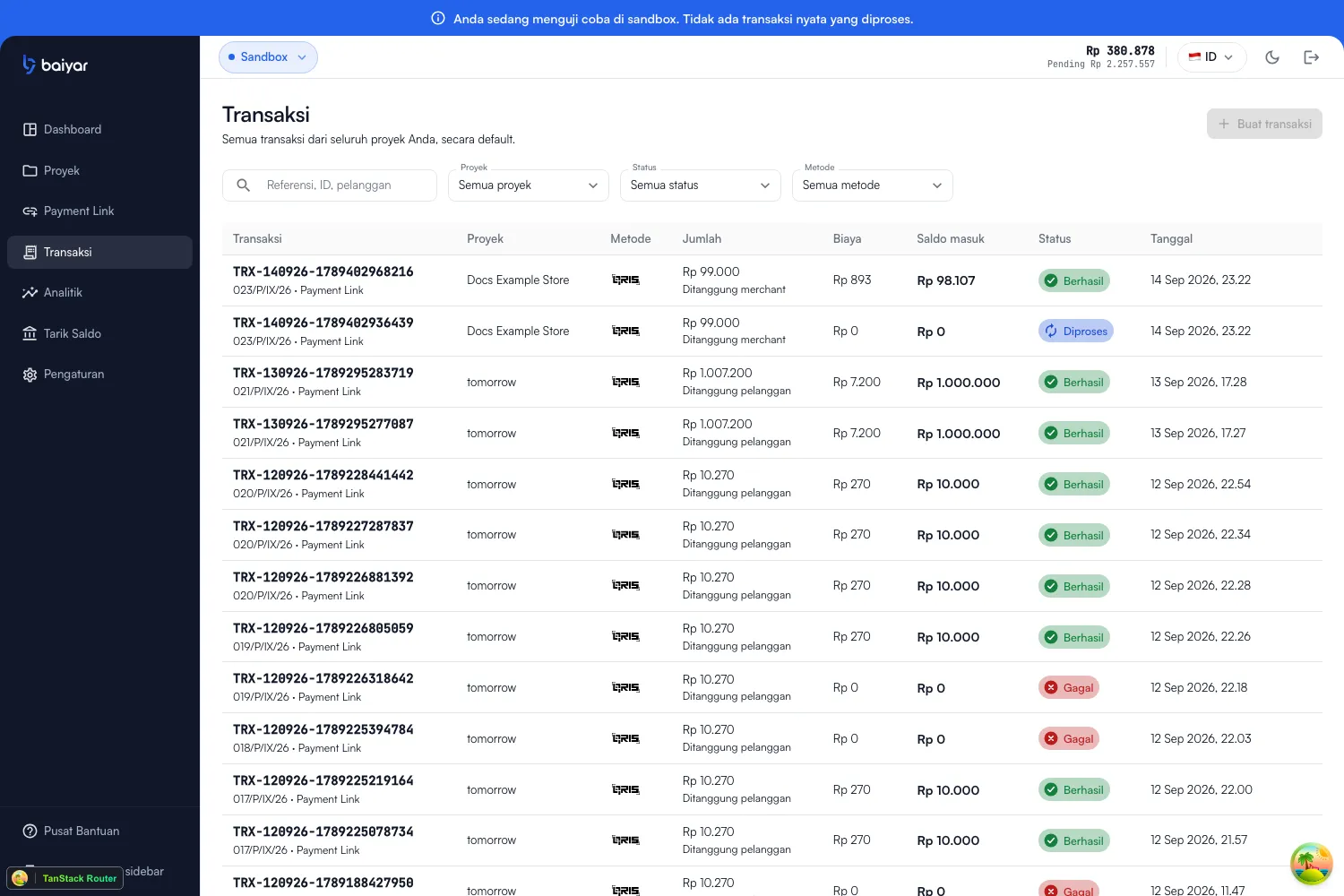
Section titled “Overview”Transactions lists every payment attempt across your projects, in the active environment — whether it came from a payment link or a direct payment call.
Filters
Section titled “Filters”Search by reference, transaction ID, or customer, and narrow the list with three independent filters:
| Filter | Options |
|---|---|
| Project | All projects, or one specific project |
| Status | All statuses, or one of pending, processing, succeeded, failed, expired — see Payment Statuses |
| Method | All methods, QRIS, or Virtual account |
The list
Section titled “The list”| Column | Shows |
|---|---|
| Transaction | The transaction code and your reference, plus a badge for its source (e.g. “Payment Link”) |
| Project | Which project the transaction belongs to |
| Method | The payment method used |
| Amount | The amount, with a note on who bears the fee — “Paid by customer” or “Paid by merchant” |
| Fee | The fee charged for this transaction |
| Balance credited | The net amount credited to your balance after fees |
| Status | The transaction’s overall status — see Payment Statuses |
| Date | When the transaction was created |
If nothing’s there yet, the list shows an empty state: “No transactions yet — transactions for the active environment will appear here after payments are created.”
Transaction detail
Section titled “Transaction detail”Click a row to open the full detail for that transaction: its code and
copyable ID (txn_...), status, reference, payment method, source, and
timestamps.
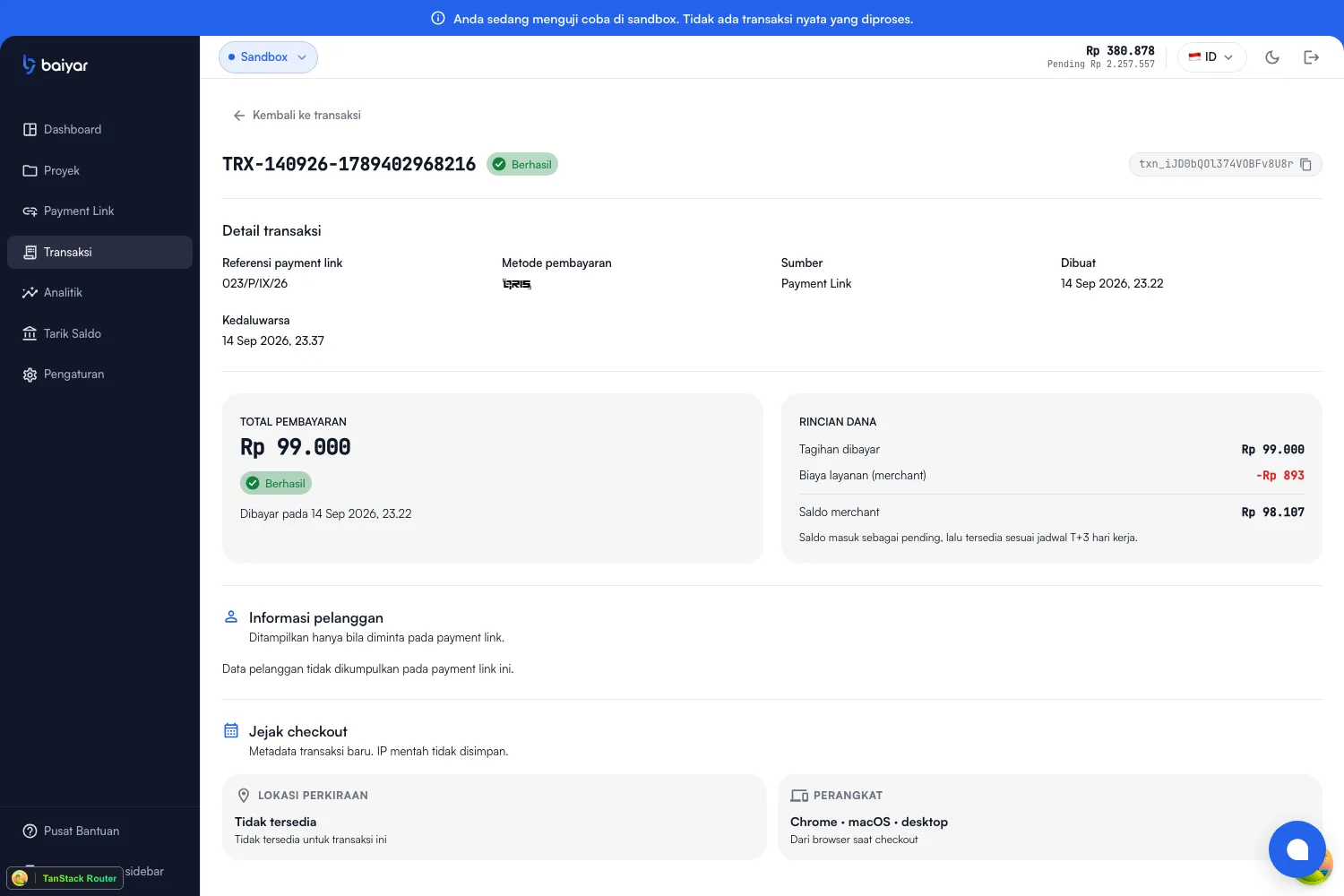
Two sections here aren’t visible from the list:
- Fund breakdown — the amount actually paid, the service fee charged to the merchant, and the balance this transaction credits. A note on this card is the clearest statement of settlement timing anywhere in the product: the balance is credited as pending first, then becomes available on a T+3 business day schedule. See Settlement for what happens after that.
- Checkout trail — an approximate location (when available) and device info (browser, OS, device type) captured from the customer’s browser during checkout. Useful context when investigating a disputed or suspicious payment; it’s best-effort and often shows “Not available” for location.
Customer information — name, email, phone, or address — appears here too, if the payment link or request collected it.
Next steps
Section titled “Next steps”- Payment Statuses for what each status value means.
- Settlement for how a pending balance becomes withdrawable.