
Payment Links
Overview
Section titled “Overview”Payment Link in the dashboard sidebar creates a payment link the same way the API does, without writing any code — useful for a one-off invoice or when you’d rather not integrate the API at all.
Create a payment link
Section titled “Create a payment link”Click Payment Link in the sidebar, then New payment link.
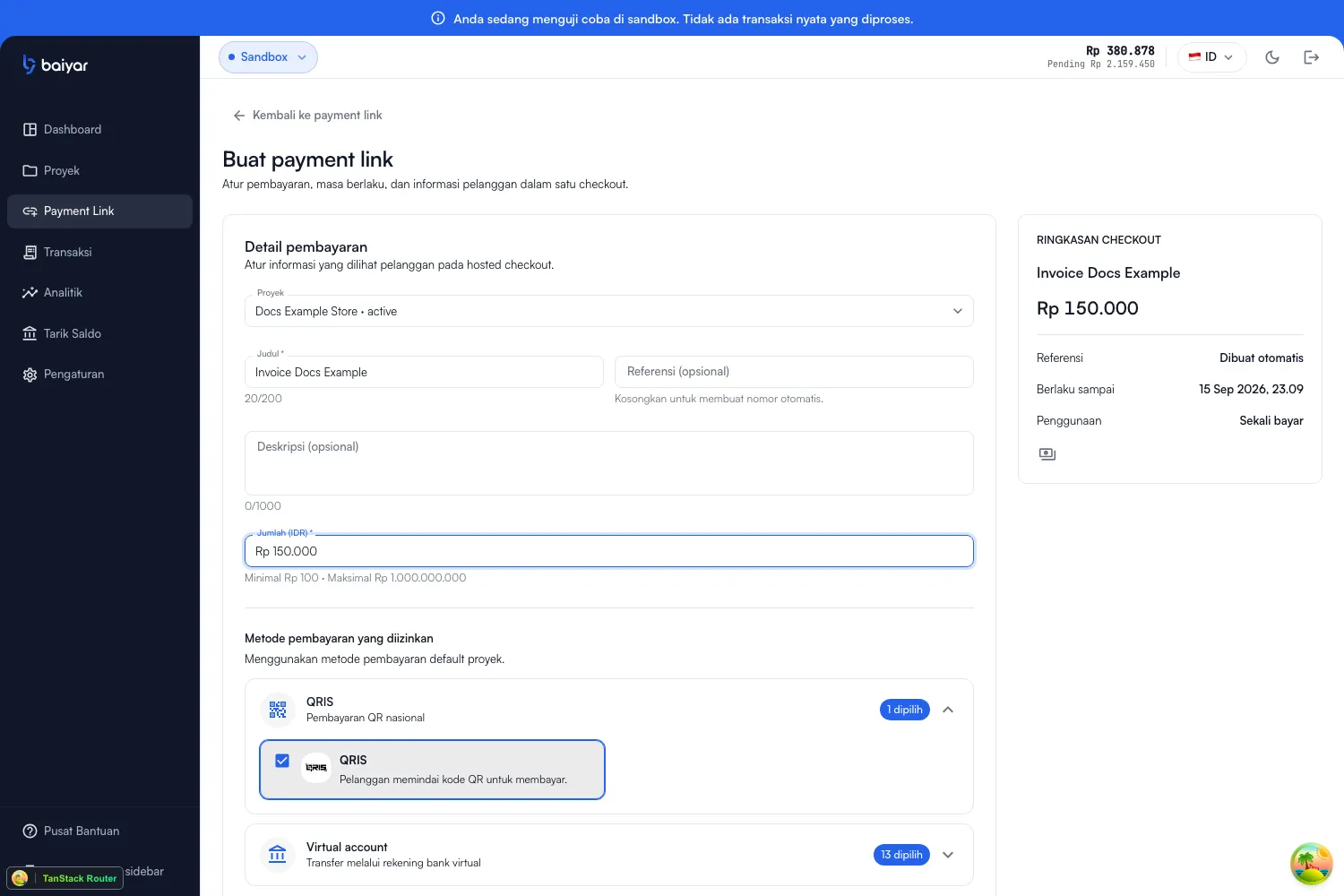
| Field | Required | Notes |
|---|---|---|
| Project | Yes | Which project this link belongs to |
| Title | Yes | Up to 200 characters — shown to the customer |
| Reference | No | Your own order ID; left blank, one is generated automatically |
| Description | No | Up to 1000 characters |
| Amount (IDR) | Yes | Minimum Rp 100, maximum Rp 1,000,000,000 |
| Allowed payment methods | No | Defaults to the project’s enabled channels — open a category to override which methods this link accepts |
A Checkout summary panel on the right updates live as you fill the form, so you can see exactly what the customer will see before creating the link.
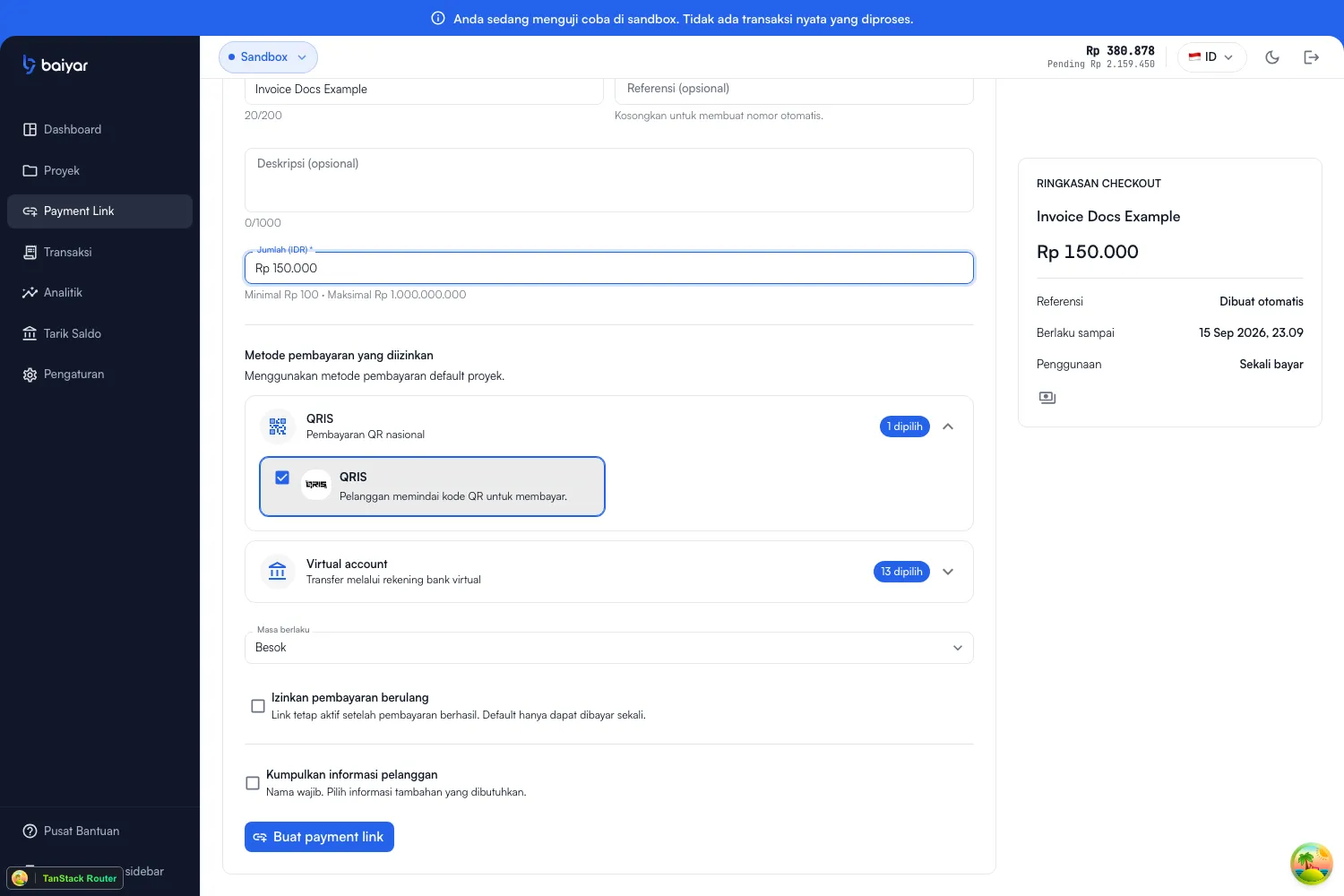
| Field | Notes |
|---|---|
| Expiration | No expiration, Tomorrow (default), 7 days, 14 days, or a custom date/time |
| Allow multiple payments | Off by default — see Single-use vs. reusable below |
| Collect customer information | Off by default — name is required if turned on, with optional email/phone/address |
Single-use vs. reusable
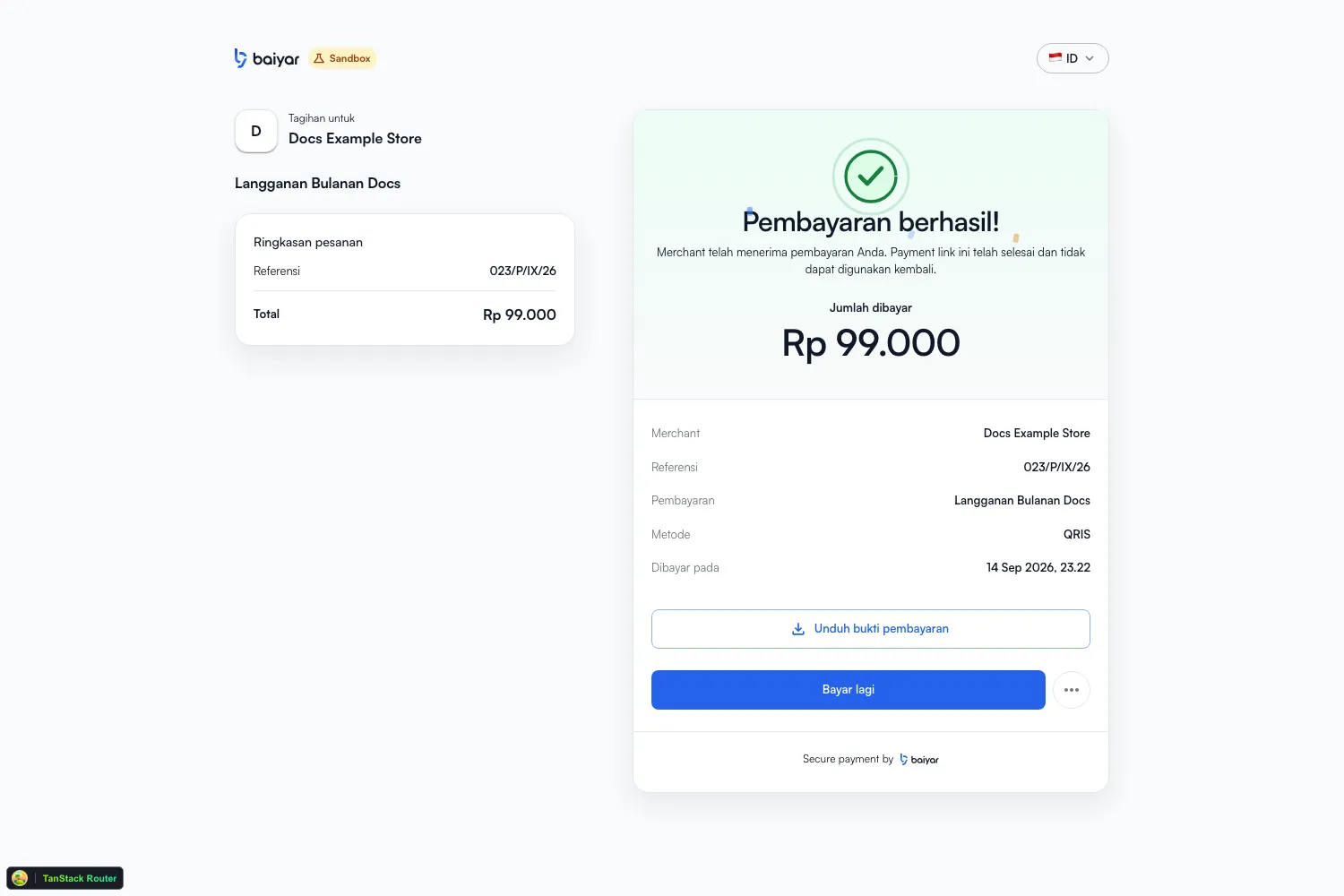
Section titled “Single-use vs. reusable”Allow multiple payments off (the default) makes a single-use link: it exists for exactly one payment. Leave it on to make the link reusable — it keeps accepting new payments after a successful one, and the customer sees a Pay again button on the success screen instead of a dead end. Use this for something like a tip jar or a recurring donation link, where the same URL should work for every customer, every time.
The payment link page
Section titled “The payment link page”Creating a link takes you to its own page: status, the ID (pl_test_...
in sandbox), the hosted checkout URL to copy and share, its configuration,
and — since it’s scoped to one link instead of a whole project — live
stats for that link specifically.
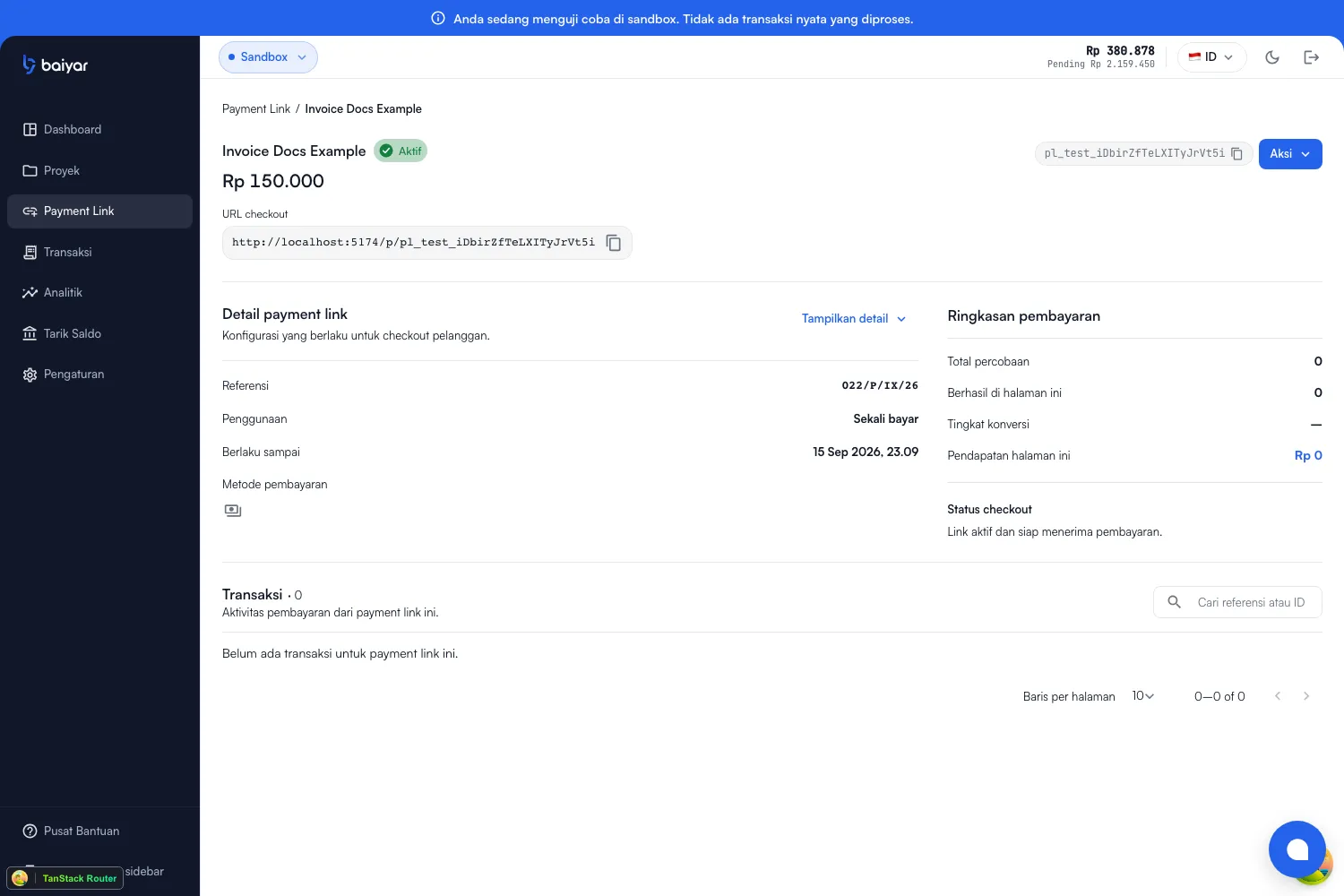
- Payment summary — total attempts, how many succeeded on this page, conversion rate, and revenue through this specific link.
- Transactions — every payment attempt made through this link, searchable by reference or ID.
Actions
Section titled “Actions”The Actions menu on this page:
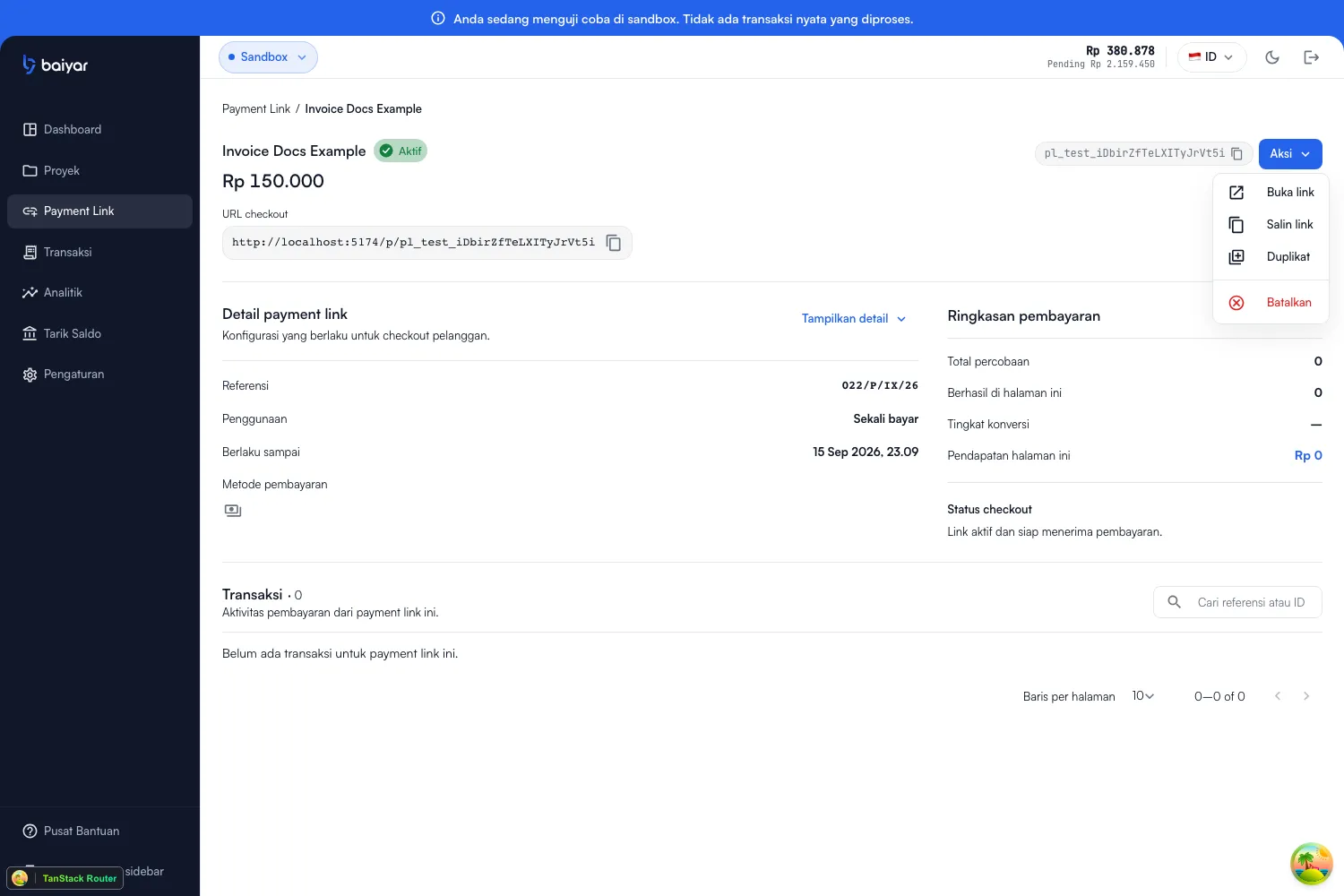
| Action | What it does |
|---|---|
| Open link | Opens the hosted checkout URL in a new tab, as a customer would see it |
| Copy link | Copies the checkout URL |
| Duplicate | Opens the create form pre-filled from this link (title, amount, methods) — reference and expiration are fresh, not copied |
| Cancel | Confirms, then cancels the link — same effect as POST /v1/payment-links/{id}/cancel. Once cancelled, a link can’t be used again; this doesn’t affect payments already made |
What the customer sees
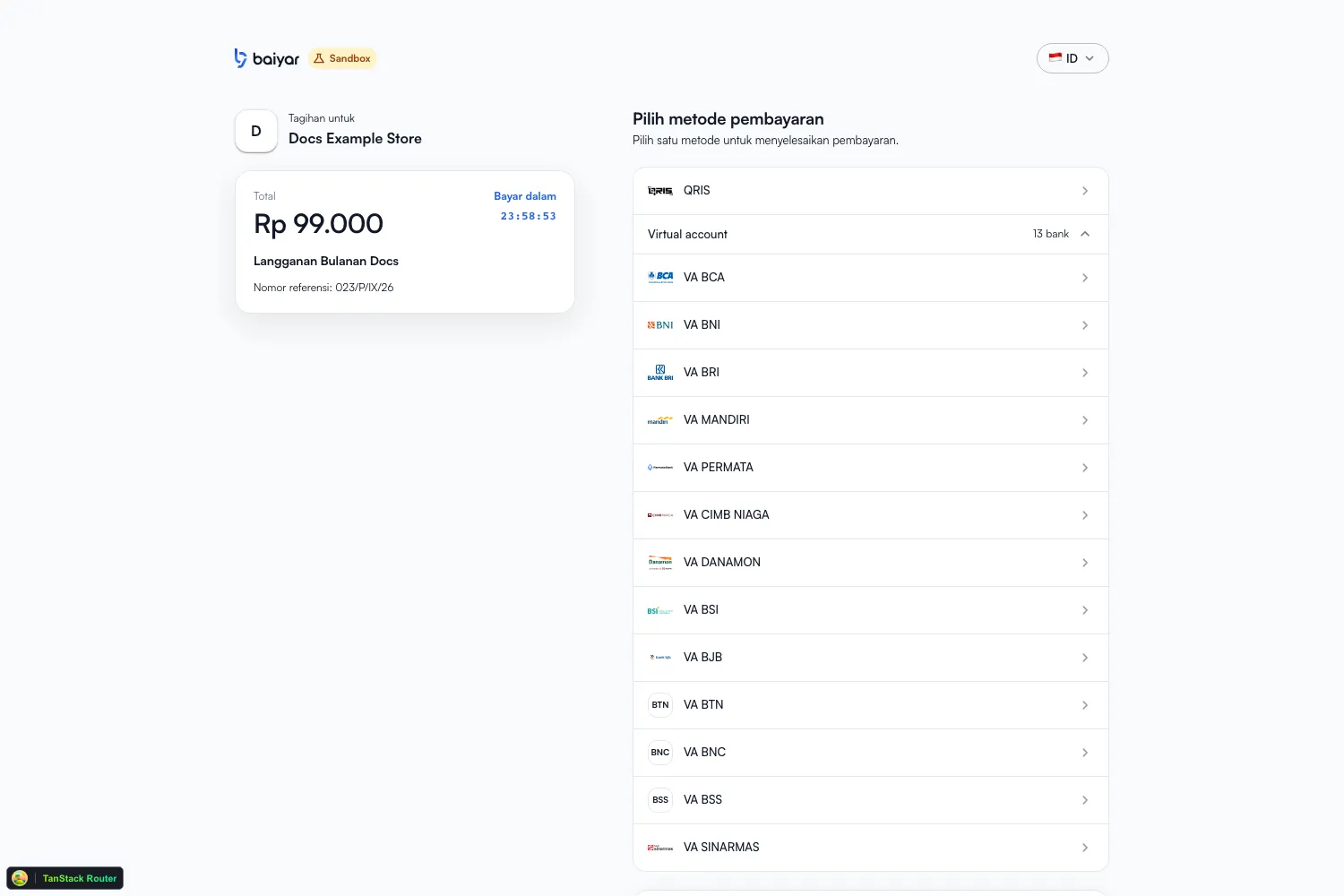
Section titled “What the customer sees”Opening the checkout URL shows the amount, title, and reference, with a countdown to expiration and a method to choose:
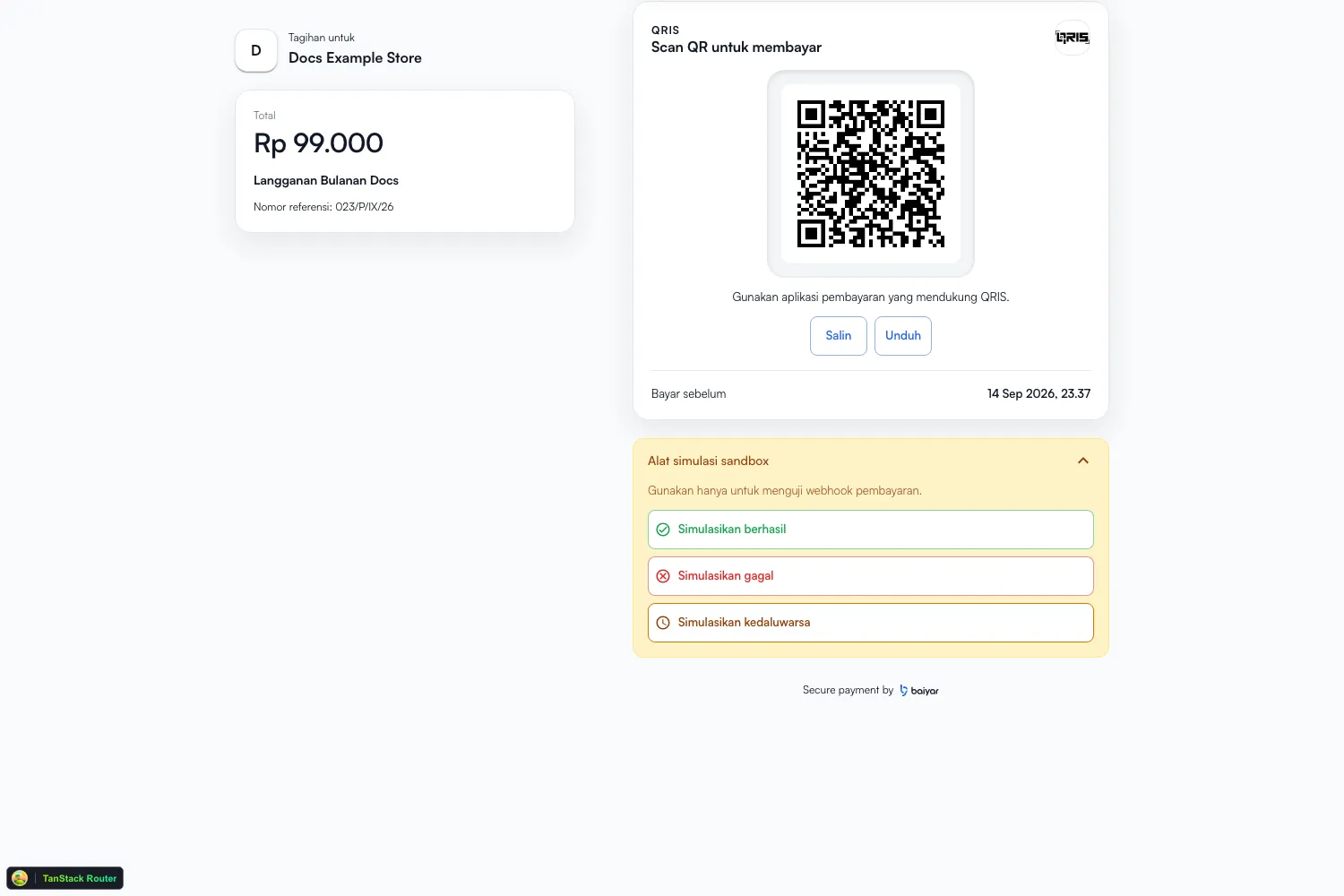
After picking a method and continuing, the customer gets that method’s instructions — a QR code for QRIS, or a virtual account number and steps for a bank transfer:
Once paid, the customer sees a receipt — downloadable, and with Pay again if the link is reusable:
Next steps
Section titled “Next steps”See Payment Links for the concept and lifecycle, and Payment Statuses for what a link’s status does and doesn’t tell you about whether it’s been paid.